


Effective communication between a MacBook and a printer is essential for seamless productivity and efficiency. Users often face challenges in establishing or maintaining a stable connection, leading to disrupted workflows and mounting frustration. This article aims to provide practical guidance for troubleshooting the connectivity issues that can arise when operating printers with MacBooks. By outlining common printer problems and offering clear, step-by-step solutions, this article serves as a reliable resource for anyone seeking to resolve printer connectivity issues.
The complexity of printer problems varies, ranging from basic issues, such as ensuring the device is properly plugged in and switched on, to more intricate software concerns involving drivers or network settings. Acknowledging the diverse nature of printer-related complications, this article sheds light on both hardware and software troubleshooting techniques. It emphasizes methodical approaches to isolate and diagnose the root causes of printing malfunction with a MacBook, ensuring users can swiftly return to their printing tasks with minimal interruption.
Identifying Common Printer Problems
When Mac users face printer problems, it’s crucial to assess error messages, check the printer’s hardware, and understand the connection between the printer and the Mac. Effective troubleshooting hinges on recognizing these aspects to provide clear and precise feedback for resolving issues.
Interpreting Error Messages
If a printer issue arises, Mac users should first look at any error messages displayed. These messages can vary from paper jams to low ink or toner levels. For instance, a “Printer Offline” message may indicate a connection problem, while an “Error -43” could signify a file system issue. Such feedback is instrumental in pinpointing the exact troubleshooting steps needed.
Checking Printer Hardware
The physical inspection of the printer should focus on several key hardware components:
- Paper Tray: Check for proper placement of paper and remove any jams.
- Ink or Toner: Ensure ink cartridges or toner are adequately supplied and correctly installed.
- Power and Data Cables: Verify that all cables are securely connected.
A thorough check can eliminate common hardware issues before software troubleshooting begins.
Understanding Printer and Scanner Connections
Printers and scanners connect to Macs via a local network, Wi-Fi network, or direct cable. Confirming that the Mac’s IP address aligns with the printer’s is critical. If the devices are intended to communicate over a Wi-Fi network, ensure both are on the same network. For direct connections, check if the Mac recognizes the printer in the ‘Printers & Scanners’ section of System Settings. Addressing any discrepancy in the printer connection is essential for successful print, scan, or fax operations.

Software and Driver Solutions
For Mac users experiencing printer connectivity issues, addressing software and driver concerns is a critical step. This section explores essential software-related troubleshooting methods, from updating systems to managing print jobs and resetting printing features.
Updating MacOS and Printer Drivers
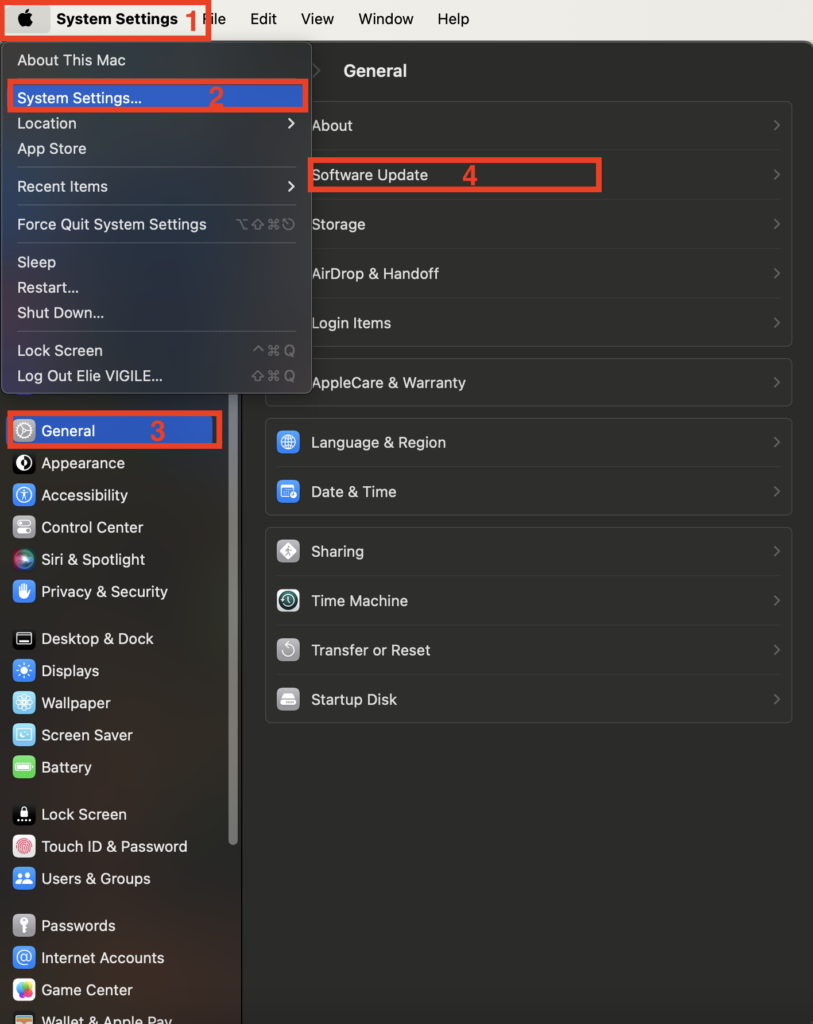
A user must ensure that both their MacOS and printer drivers are up to date. This can usually resolve a majority of compatibility issues. To update MacOS, one should:
- Click on the Apple icon in the top-left corner of the screen.
- Select System Settings from the Apple menu.
- Click “General”
- Click Software Update to check for available updates.

For printer drivers, the process typically involves:
- Accessing Printers & Scanners under System Preferences.
- Selecting the relevant printer.
- Opting to Update if the option is presented or visiting the printer manufacturer’s website to download the latest drivers.
Managing the Print Queue
Sometimes, print jobs can get stuck in the print queue. To manage this:
- Open System Preferences and select Printers & Scanners.
- Choose the problematic printer to view its queue.
- Use options like Pause, Resume, or Cancel Print to control the print jobs.
Resetting the Printing System
If updating drivers and managing the print queue doesn’t resolve the issue, one may need to reset the printing system:
- In System Preferences, click on Printers & Scanners.
- Right-click in the list of devices and select Reset printing system.
- Confirm the action, which will remove all printers and jobs.
- After the reset, users should Re-add their printer by clicking the Add Printer or + button.
By following these focused software and driver solutions, users often rectify printer connectivity issues with their MacBooks in a straightforward and effective manner.
Network Configuration and Connectivity
Ensuring a smooth interaction between a MacBook and a printer requires meticulous configuration of network settings and addressing common network-related issues.
Part of this process involves understanding how to connect printer to MacBook Pro via network settings, ensuring both devices communicate effectively over the same network.
Configuring Wi-Fi Printers
To connect a MacBook to a Wi-Fi printer, it’s essential to ensure both devices are on the same Wi-Fi network. Verifying the printer’s connection to the network can often be done directly via its built-in menu or by referring to the printer manufacturer’s instructions. For MacBooks, one can add the printer by navigating to Apple menu > System Settings, then clicking on Printers & Scanners. If the Wi-Fi printer does not appear in the list, clicking the Add Printer button will prompt a search for available printers on the local network.
Advanced Troubleshooting Techniques
When MacBook users encounter printer issues, advanced troubleshooting methods are often required. These techniques delve deeper into the system and printer settings to pinpoint and resolve the connectivity problem.
Using Diagnostic Functions
Mac Systems often include built-in diagnostic functions that can help isolate printer issues. Users should run these tools to get detailed error messages and status reports, which can highlight issues that aren’t immediately apparent. For instance, an old printer might display communication problems that can be detected and sometimes rectified through macOS’s Printer Diagnostics. These diagnostic functions may reveal if the problem is related to software incompatibility or hardware malfunction.
Steps to access macOS’s Printer Diagnostics:
- Navigate to System Preferences.
- Select Printers & Scanners.
- Choose the printer in question and look for an option to Run Diagnostics or similar.
Observing Error Messages
- Errors related to a printer’s status or software drivers can suggest next steps for the user.
- Users should provide this feedback to support teams if further help is required.
Consulting User Manual and Manufacturer Support
The user manual serves as an invaluable resource for understanding the specific functions and troubleshooting methods recommended by the printer manufacturer. It often contains information regarding error messages, maintenance for older printer models, and guidance for resolving complex issues.
Benefits of Consulting the User Manual:
- Tailored Troubleshooting Steps: Specific to the make and model of the printer.
- Maintenance Tips: Extend the life and performance of the printer.
Manufacturer Support can offer advanced assistance and should be contacted when a user’s troubleshooting efforts, based on personal information and feedback, do not resolve the printer and Mac connectivity problems.
Types of Support Available:
- Online: Manufacturers support websites and live chat services.
- Phone: Direct support line for complex issues.
Gathering Personal Information
- Before contacting support, ensure all relevant personal information about the printer and Mac setup is available.
- Model numbers, serial numbers, and a description of the issue can expedite the support process.