


Troubleshooting Printer Not Printing Issues
Printers are indispensable tools in homes and offices, transforming digital documents into tangible outputs. However, when a printer stops printing, it can disrupt productivity and cause frustration. This guide aims to help you troubleshoot and resolve common printing problems efficiently, ensuring your printer is back up and running in no time.
Common Printing Problems
Printing issues can manifest in various forms, affecting both print quality and functionality. Understanding these common problems is the first step toward effective troubleshooting:
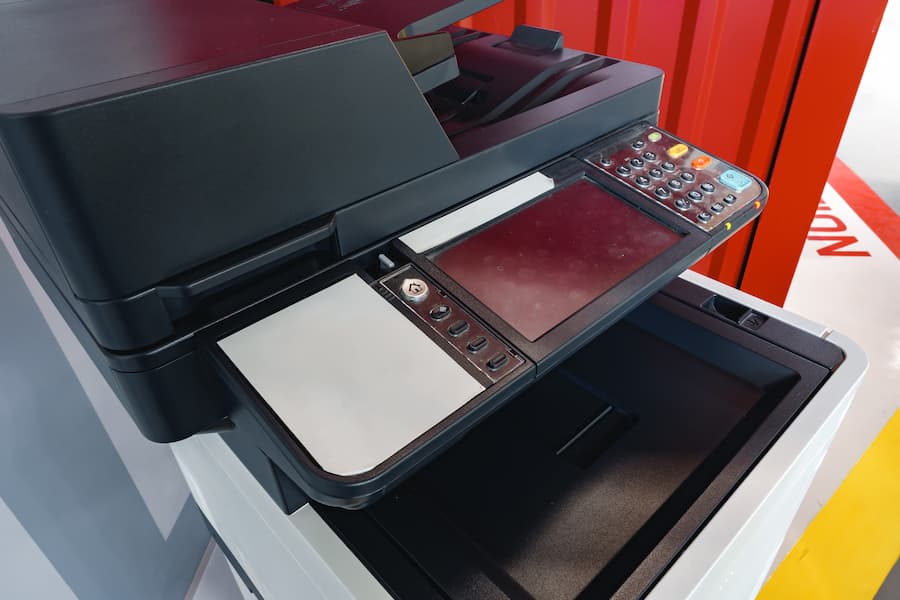

- Paper Jams: One of the most frequent issues, paper jams occur when sheets of paper get stuck in the printer, often due to misalignment or overloading of the paper tray.
- Connectivity Problems: Printers may have trouble maintaining a stable connection to your computer or network, particularly wireless printers. This can lead to offline printer issues or interrupted print jobs.
- Ink or Toner Problems: Low ink levels, dried-up ink, or incorrect installation of ink cartridges can result in faded prints or printing failures.
- Print Quality Issues: Problems such as streaks, smudges, or faded text often stem from dirty print heads or incorrect printer settings.
Understanding these issues helps in diagnosing problems quickly and effectively.
Printer Troubleshooting Basics
Before diving into complex solutions, it’s important to address basic troubleshooting steps that can resolve many printing issues:
- Check Power and Connections:
- Ensure the printer is powered on and properly connected to a power source. Confirm that all cables are securely plugged in and, for wireless printers, check that the network connection is stable.
- Printer Status:
- Verify that the printer is set as the default printer on your computer. Check for error messages or warning lights on the printer’s control panel that might indicate specific problems.
- Check for Obvious Issues:
- Open the printer to look for any obvious signs of trouble, such as visible paper jams or loose components.
- Perform a Printer Reset:
- Turn off the printer, unplug it from the power source, wait a minute, and then plug it back in and turn it on. This can reset the printer’s internal memory and resolve minor glitches.
Understanding Printer Hardware and Software
Both hardware and software components are crucial to a printer’s functionality. Here’s how they can impact printing:
Printer Hardware Components:
- Print Head and Ink Cartridge Issues:
- The print head can become clogged or misaligned, affecting print quality. Regular cleaning and alignment checks can prevent these issues. Ensure ink cartridges are correctly installed and not empty.
- Paper Tray and Feed Mechanisms:
- Misalignment of the paper tray or overloading can cause paper jams and feeding issues. Check that paper is loaded correctly and not exceeding the tray’s capacity.
- Print Head and Ink Cartridge Issues:
- Printer Software and Drivers:
- Print Driver Issues:
- Drivers act as a communication bridge between your computer and printer. Outdated or corrupted drivers can cause printing problems. Regular updates and reinstallations can help maintain proper functionality.
- Printer Software Configuration:
- Ensure that the printer’s software settings match the requirements of your print job, such as paper size and print quality settings.
- Print Driver Issues:
Paper Sizes and Types
Using the correct paper size and type is essential for optimal print performance and avoiding errors:
- Impact of Incorrect Paper Sizes:
- Incorrect paper size settings can cause the printer to reject print jobs or print incorrectly. Always verify that the paper size in the printer settings matches the paper loaded in the tray.
- Choosing the Right Paper:
- Different print jobs require different paper types. For example, high-quality photo prints require glossy paper, while standard documents are best on plain paper. Choose the appropriate paper to ensure the best print results.
Troubleshooting Specific Printer Errors
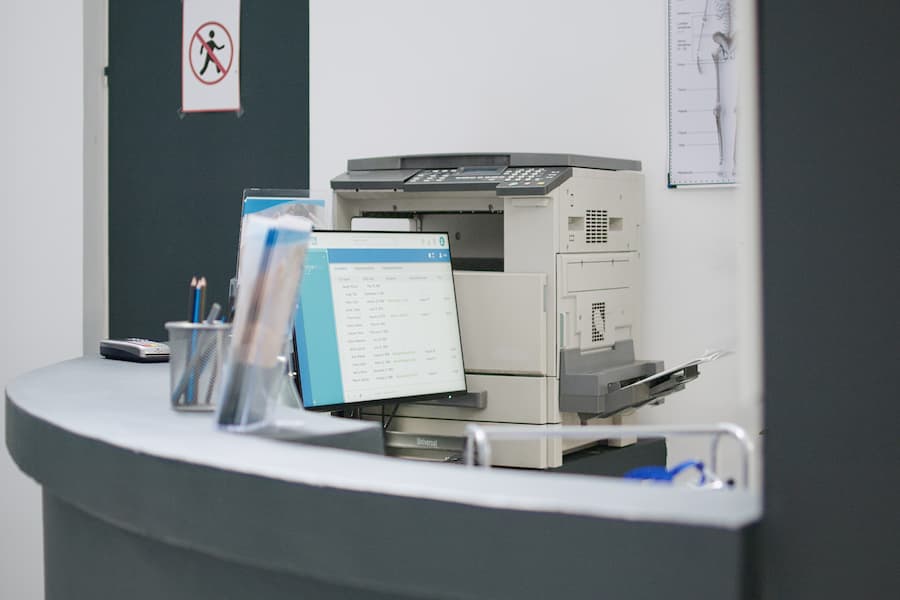
Addressing specific printer errors can often lead to quick solutions:
- Offline Printer Issues:
- When a printer appears offline, check the connection status in your computer’s printer settings. Ensure the printer is connected to the correct network and try restarting both the printer and your computer.
- Print Spooler Problems:
- The print spooler manages print jobs sent to the printer. If print jobs are stuck in the queue, restarting the print spooler can resolve this issue. Access the “Services” panel in Windows or use the terminal on a Mac to restart the print spooler.
- Handling Paper Jams:
- To remove a paper jam, turn off the printer and gently remove the jammed paper, following the instructions in the printer’s manual. Ensure the paper path is clear before restarting the printer to prevent further jams.
Advanced Troubleshooting
Advanced Printer Troubleshooting
When basic troubleshooting steps don’t resolve the problem, more advanced techniques may be necessary. Here are some common issues and their solutions:
Dealing with Print Quality Issues:
- Cleaning the Print Head:
- Over time, the print head can accumulate ink or dust, causing streaks or smudges. Most printers have a built-in cleaning function accessible via the printer settings on your computer or directly from the printer’s control panel. Run the cleaning cycle and perform a test print to see if quality improves.
- Aligning the Print Head:
- Misalignment can cause blurred or skewed prints. Use the alignment utility available in the printer software to recalibrate the print head.
- Using Quality Paper and Ink:
- Poor print quality can result from using low-quality paper or third-party ink cartridges. Ensure you are using the recommended paper type and original ink or toner cartridges from the printer manufacturer.
- Cleaning the Print Head:
Resolving Printer Connectivity Problems:
- Reconnecting to Wireless Networks:
- For wireless printers, check that the printer is connected to the correct Wi-Fi network. If necessary, reconnect the printer to the network using the setup instructions provided in the user manual.
- Troubleshooting Wired Connections:
- Ensure that the USB or Ethernet cables are securely connected. If using a USB connection, try a different port on your computer. For Ethernet, ensure the cable is not damaged and the network settings are correct.
- Reconnecting to Wireless Networks:
Addressing Print Spooler Errors:
- If print jobs are stuck or not processing, clearing the print spooler can help:
- Access the Services Panel (Windows):
- Open the Run dialog (
Win + R), typeservices.msc, and press Enter. Find the “Print Spooler” service, right-click, and select “Restart.”
- Open the Run dialog (
- Terminal Command (Mac):
- Open Terminal and type
sudo ccp stop && sudo ccp startto restart the print spooler.
- Open Terminal and type
- Access the Services Panel (Windows):
- If print jobs are stuck or not processing, clearing the print spooler can help:
Manufacturer-Specific Troubleshooting
Different printer brands may have unique issues and solutions. Here’s a look at troubleshooting for specific manufacturers:
HP Printer Troubleshooting:
- Common Issues with HP Printers:
- HP printers may experience connectivity issues or ink cartridge recognition problems. Ensure that the printer firmware is up to date by visiting the HP printer manufacturer’s website for the latest updates.
- Resources and Support:
- Utilize HP’s online support resources, including troubleshooting guides, forums, and live chat options for assistance.
- Common Issues with HP Printers:
Troubleshooting for Laser Printers:
- Unique Issues Faced by Laser Printers:
- Laser printers can suffer from toner smears or light prints due to low toner levels or dirty fuser units. Regular maintenance and replacement of the toner cartridge when needed can help maintain print quality.
- Tips for Maintaining Laser Printers:
- Clean the interior of the printer regularly to prevent toner build-up, and replace the fuser unit as recommended by the manufacturer.
- Unique Issues Faced by Laser Printers:
Preventative Maintenance and Simple Fixes

Regular maintenance can prevent many common printing problems:
Regular Maintenance Practices:
- Scheduled Cleaning:
- Set a schedule to clean the printer’s exterior and interior components, including the print head and paper feed rollers. This prevents dust build-up and ensures smooth operation.
- Routine Updates:
- Regularly check for software and firmware updates from the manufacturer to ensure the printer operates with the latest improvements and bug fixes.
- Scheduled Cleaning:
Quick Fixes for Common Issues:
- Clearing the Print Queue:
- If print jobs are not processing, clear the print queue by accessing the printer settings on your computer and canceling all pending jobs.
- Reinstalling Printer Software:
- Sometimes, uninstalling and reinstalling the printer software can resolve persistent issues. Follow the instructions from the printer manufacturer’s website to download and install the latest version.
- Clearing the Print Queue:
Frequently Asked Questions (FAQs)
Why is My Printer Not Printing Even Though It Has Ink?
If your printer won’t print, even though it has ink, several factors could be causing the issue. First, check that the printer is turned on and connected properly via USB or your network. Make sure the printer is the one you want to use by selecting it from the list of available printers on your device.
Next, inspect the ink cartridges to ensure they are not low or empty. Even if they are not, consider replacing them with new ink cartridges to rule out any cartridge recognition issues. Check the ink levels via the printer’s software on your computer. On Windows 10 or Windows 11, you can right-click on the printer icon in the “Devices and Printers” section to find this information. If necessary, try moving the print head to see if it is functioning correctly. Performing a cleaning cycle through the printer settings may also help.
Lastly, try printing a document after checking these elements to see if the issue persists.
How Do I Fix a Paper Jam?
To fix a printer that is not printing due to a paper jam, follow these simple ways. First, turn off the printer and carefully open the paper trays to remove any jammed paper. Make sure that the printer is free of any torn pieces, as leftover fragments can cause further jams. Check that the paper is correctly aligned and not exceeding the tray’s capacity.
Before turning the printer back on, make sure the paper size and type of paper loaded match the settings on your computer. This includes checking for unusual sizes like 11 x 17, which might require adjusting settings in the printing process.
After removing the paper and ensuring proper alignment, try printing a test page to confirm that the issue is resolved.
Why is My Printer Offline?
If your printer is not printing because it is showing as offline, try the following steps. First, check that all cables are connected via the correct ports, and the printer is turned on. If your printer uses a wireless connection, ensure that it is connected to the correct network.
On your computer, go to the “Devices and Printers” section, right-click on the printer icon, and select “See what’s printing.” Delete all files in the queue to clear any stuck print jobs. You might also need to add a printer or scanner again if it was removed accidentally. In the same menu, ensure your printer is set to “Use Printer Online.”
If you still cannot print, try restarting both your computer and printer. This can often reset the connection and fix printer issues.
How Do I Reinstall My Printer Driver?
Reinstalling your printer driver is a useful way to fix printer issues related to software conflicts. On Windows 10 and Windows 11, go to “Devices and Printers,” find your printer, right-click on the printer icon, and select “Remove device.” Once removed, visit the printer manufacturer’s website to download and install the latest driver.
During installation, follow the prompts to set up your printer again. This might involve selecting your printer model and connecting it via USB or network. After installation, print a test page to ensure everything is working properly.
Reinstalling the driver ensures that the latest updates and fixes are applied, often resolving persistent printing problems. Always refer to the terms of service and privacy policy provided by the manufacturer when downloading new software.
Regular maintenance and proactive troubleshooting are key to avoiding printing issues. By following the steps outlined in this guide, you can effectively diagnose and resolve common and complex printer problems, ensuring your printer functions smoothly and efficiently. Encourage readers to share their tips and experiences in the comments, and provide links to additional resources and support for further assistance.