

How to Scan to Email From Any Device or Scanner

AI Overview:
Scan to email is a simple but powerful way to eliminate paper bottlenecks and speed up business workflows by turning physical documents into secure, shareable digital files in minutes. This guide explains why scan to email is essential for modern businesses and walks through how to set it up on office multifunction printers, desktop scanners, and mobile apps. It covers SMTP configuration, encryption, OCR for searchable PDFs, file format and quality best practices, security controls, and common troubleshooting tips—showing how scan to email supports productivity, security, and a broader move toward efficient digital document management.
Drowning in paper is a surefire way to create bottlenecks and slow your business to a crawl. The answer isn’t more filing cabinets—it’s knowing how to scan to email. This simple function transforms physical pages into secure, instantly shareable digital files, bridging the gap between your physical and digital worlds.
This guide provides a clear, step-by-step process for mastering this feature on everything from a large office multifunction printer (MFP) to the smartphone in your pocket, ensuring your team can operate more efficiently.
Why Scan to Email Is a Modern Business Essential
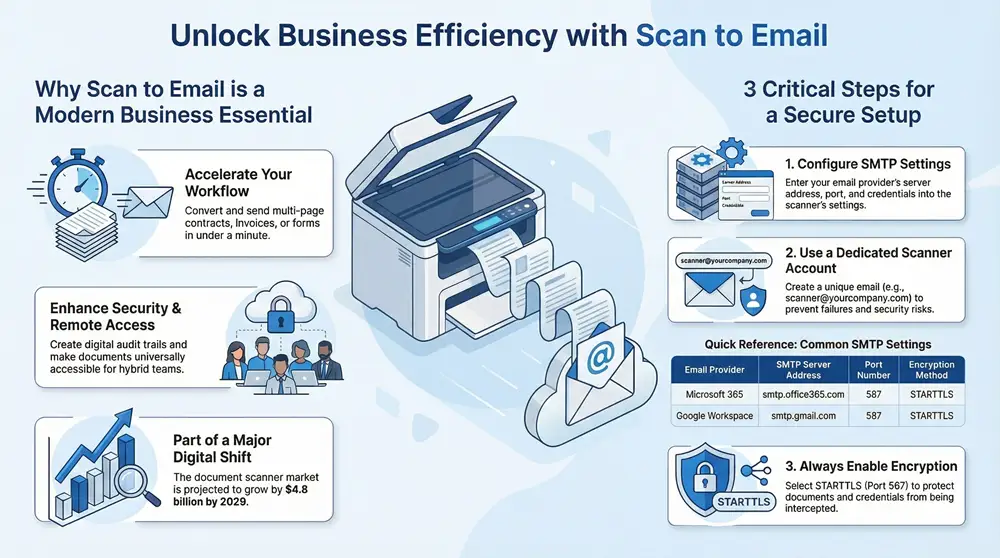
Paper-based systems are a drag on productivity. They slow operations, introduce security risks, and consume valuable office space. Every minute spent manually filing, finding, and sharing a document is a minute not spent on core business activities.
Scan to email is the foundational first step toward a more efficient, organized, and productive workplace.
The real value lies in its speed and simplicity. A properly configured device allows any team member to convert a multi-page contract, a stack of invoices, or a signed form into a PDF and deliver it to a client’s inbox in under a minute. This capability accelerates decision-making, improves customer response times, and ensures critical information is accessible when and where it’s needed.
The Big Shift Toward Digital Workflows
The move away from paper is a significant market shift, not a temporary trend. The global document scanner market is projected to grow by USD 4.8 billion between 2025 and 2029. This growth is driven by businesses across all sectors—including healthcare, legal, and government—seeking to manage high volumes of paper and streamline communication. You can explore the factors driving this market growth on prnewswire.com.
A well-implemented scan-to-email system is more than a convenience—it’s a strategic tool. It reduces operational costs associated with printing and storage, enhances data security by creating digital trails, and supports remote and hybrid work models by making documents universally accessible.
Scan to email is also a key component of comprehensive Document Management Services that organize your entire business. For companies with years of archived files, professional bulk scanning services offer a cost-effective solution to digitize archives and achieve a fully paperless environment.
Configuring Your MFP for Reliable Scan to Email
Setting up your office multifunction printer (MFP) to send scanned documents reliably is a manageable process. The key is to provide your scanner with its own dedicated email credentials, allowing it to log into your email service and send messages on its behalf.
Proper configuration transforms your MFP from a simple copier into a digital on-ramp for your office workflow.
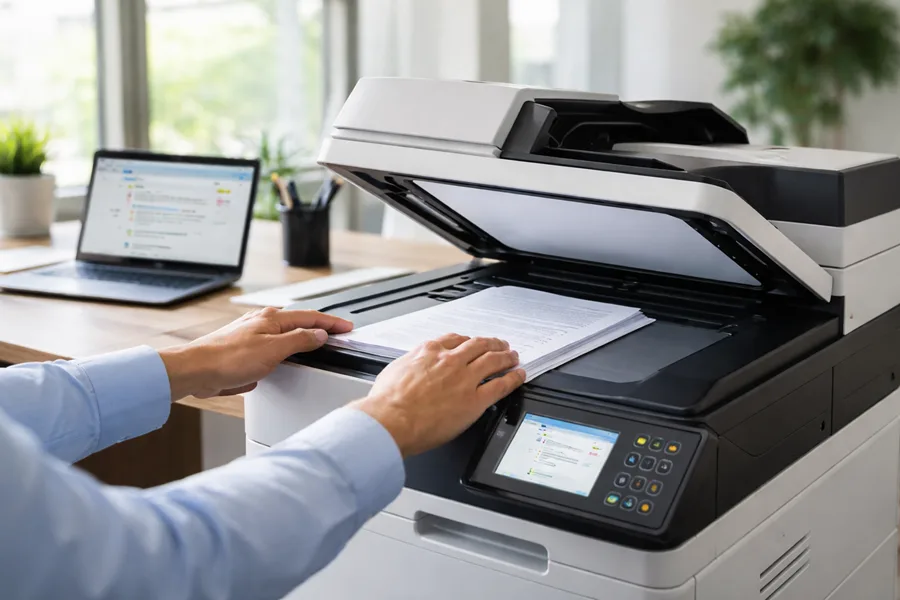
Configuration is done through the printer’s internal webpage, known as the Embedded Web Server (EWS). This is the command center for your device’s network functions. First, find the MFP’s IP address, which is typically available in the network settings menu on the device’s screen.
Enter the IP address into your web browser to access the EWS. The interface will vary by brand—Canon, Ricoh, HP, or Sharp—but the core terminology remains consistent. Look for a section labeled Email or SMTP settings.
Locating and Understanding SMTP Settings
SMTP, or Simple Mail Transfer Protocol, is the standard for sending emails over the internet. For your MFP, the SMTP server is the outbound mail server that processes every scan. Your company’s email provider, whether it’s Microsoft 365 or Google Workspace, has a specific SMTP server address that your printer must use.
Within the EWS email menu, you will find several fields that require precise information. These settings act as the digital handshake between your scanner and your email provider.
Here’s a breakdown of what you’ll need to enter:
- SMTP Server Address: The address for the outgoing mail server. For Microsoft 365, this is typically
smtp.office365.com. For Google Workspace, it’ssmtp.gmail.com. - Port Number: This directs traffic to the correct “door” on the server. The modern standard for secure SMTP is port 587, which uses STARTTLS encryption.
- Authentication Credentials: The username (full email address) and password for the dedicated account the MFP will use. It is a non-negotiable best practice to create a dedicated, licensed email account for this purpose.
- Sender Address: The “From” address recipients will see. This should be the same as the authentication username.
Pro Tip: Never use a personal employee account for MFP authentication. When that person leaves the company or changes their password, scan to email will fail for the entire office. A dedicated account, such as
[email protected], prevents this common point of failure.
Don’t Skip on Encryption
Within the SMTP settings, you will find an option for encryption, likely labeled SSL/TLS or STARTTLS. This is not optional. Enabling the correct encryption protocol is critical for security, as it scrambles the connection between your MFP and the email server.
Without encryption, your documents and login credentials are sent across the network in plain text, creating a significant security risk for sensitive information like contracts, financial records, or HR documents. STARTTLS is the current standard and is paired with port 587.
Quick Reference for Common Email Providers
Getting the SMTP details exactly right is where most setups fail. A simple typo in the server name or selecting the wrong port will prevent the connection. To simplify the process, here is a quick-reference guide for the two most popular business email platforms.
This table provides the essential details to configure your scanner for Microsoft 365 or Google Workspace.
Common SMTP Settings for Major Email Providers
| Email Provider | SMTP Server Address | Port Number | Encryption Method |
|---|---|---|---|
| Microsoft 365 | smtp.office365.com | 587 | STARTTLS |
| Google Workspace | smtp.gmail.com | 587 | STARTTLS |
For Google Workspace, you will likely need to generate an “App Password” for the scanner account instead of using its regular password, especially if two-factor authentication is enabled. This Google security feature allows devices with older software to connect securely. You can generate one in the security settings of the dedicated Google account.
After entering all settings, use the “Test Connection” or “Save & Test” button in the EWS. A successful test email confirms the configuration is correct. If it fails, the system typically provides an error code to help diagnose the problem, which is often a typo, a firewall block, or an incorrect password.
Using Desktop Scanners and Mobile Apps for Emailing
While an office MFP is a workhorse, it’s not the only tool for digitizing and emailing documents efficiently. Dedicated desktop scanners and the powerful camera in your smartphone offer incredible flexibility for scanning to email, whether at your desk or in the field.
These tools transform a clunky, multi-step manual process into a quick, nearly effortless digital workflow, powered by specialized software that bridges the gap between physical paper and your email outbox.
Creating One-Click Workflows with Desktop Scanners
Dedicated desktop scanners from brands like Epson or Fujitsu are designed to process stacks of paper quickly and simply. Their bundled software, such as Epson ScanSmart or ScanSnap Home, allows for significant automation.
The most powerful feature is the ability to create presets or profiles, which are one-click workflows for your most common scanning jobs.
For instance, you can create a “Scan to Outlook” profile. Once configured, selecting that profile and hitting the scan button will automatically:
- Scan the document with your preferred settings (e.g., 300 DPI, color, PDF format).
- Launch a new email in your default client, like Outlook or Gmail.
- Attach the newly scanned PDF to the email.
This is a massive time-saver, eliminating the tedious sequence of scanning to a folder, finding the file, opening your email, composing a message, and attaching the document. This is a game-changer for anyone processing daily invoices, expense receipts, or client forms. Considering the common uses for an office scanner can inspire other automated workflows.
Mastering Mobile Scanning Apps
The best scanner is often the one you have with you. Modern mobile scanning apps have transformed high-resolution smartphone cameras into powerful document capture devices, far superior to simply taking a photo.
These apps use sophisticated image processing to deliver professional-quality scans that often rival those from a flatbed scanner.
The quality of mobile scanning apps has improved so much that for many day-to-day tasks, they have replaced the need for a dedicated physical scanner. The convenience of capturing a document the moment you receive it is a significant productivity booster.
A few of the most popular and effective apps include:
- Microsoft Lens: An ideal choice for offices using Microsoft 365, it integrates seamlessly with OneDrive and Outlook and can convert documents to editable Word files.
- Adobe Scan: This app leverages Adobe’s powerful imaging technology for excellent automatic edge detection, color correction, and OCR, connecting directly to the Adobe Document Cloud.
- Evernote Scannable: For Evernote users, this app is the perfect front door, designed to capture and organize documents directly into notebooks with minimal effort.
The Mobile Scan to Email Process
The process of getting a document from paper to an email attachment with a mobile app is remarkably consistent and simple.
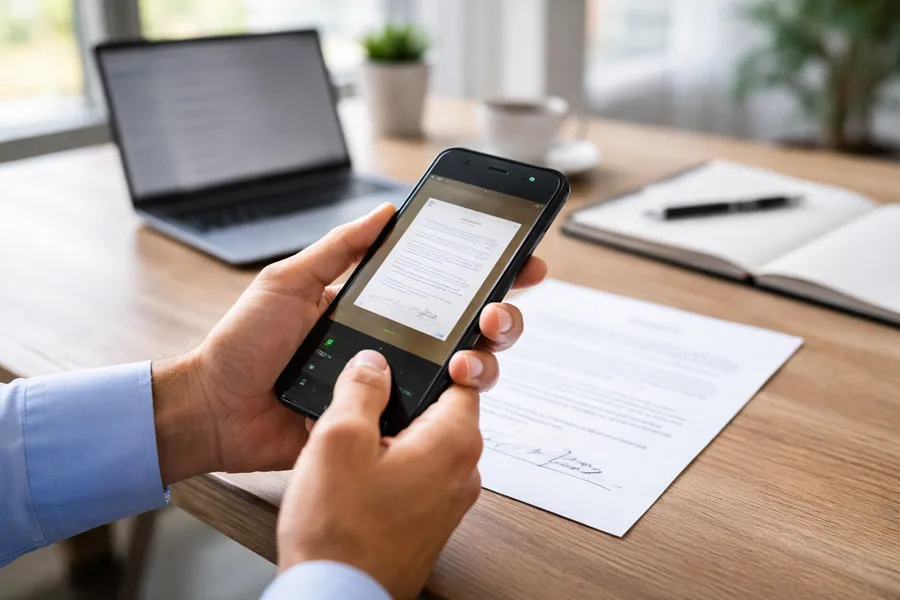
- Capture the Document: Open the app and point your camera at the page. The app automatically detects edges, corrects perspective, and removes shadows to create a clean, flat scan.
- Enhance and Adjust: Most apps provide tools for cropping, adjusting brightness, or applying filters (like black-and-white) to improve readability. You can easily add multiple pages to create a single PDF.
- Convert and Share: Once satisfied, save the scan as a PDF. Use the “Share” button to send the file directly to your email app, where it will appear as an attachment in a new message, ready to send.
This mobile-first workflow offers incredible flexibility. For example, a contract signed at a client’s office can be scanned and emailed to all stakeholders before you even leave the building. This immediacy keeps projects moving and ensures critical documents are never misplaced.
Unlocking Advanced Scan Settings and OCR
A basic scan is merely a digital snapshot of a document—a static image that cannot be searched, copied, or edited. An intelligent scan, however, transforms that image into dynamic, usable data that can dramatically accelerate your workflow.
The key technology is Optical Character Recognition (OCR), which reads the text in a scanned image and converts it into machine-readable characters. This makes a scanned invoice searchable, allowing you to copy the invoice number, find a specific line item, or even import the data directly into accounting software.
This technology is now a business necessity. Intelligent Document Processing (IDP) uses OCR and AI to automatically classify, sort, and extract key information from documents, saving time and reducing errors. You can learn more about these digital transformation trends on scanoptics.com.
Activating OCR on Your Devices
Enabling OCR is typically straightforward, whether on an office copier or a mobile app.
- On Multifunction Printers (MFPs): On the device’s touchscreen, navigate to the file format settings and select an option like “Searchable PDF,” “PDF (OCR),” or “Text-Readable PDF.” This instructs the machine to run OCR before sending the email.
- In Desktop and Mobile Software: Most modern scanning apps (like Epson ScanSmart, ScanSnap Home, or Adobe Scan) enable OCR by default when saving a file as a PDF. Check the advanced settings or “Save As” dialogue to confirm.
The single greatest benefit of OCR is findability. A year from now, you won’t remember the exact date of a vendor contract, but you will remember the vendor’s name. With a searchable PDF, a quick search on your computer or cloud storage will pull it up in seconds.
Choosing the Right File Format for the Job
While PDF is the standard for scanned documents, other formats may be more suitable depending on the purpose. Choosing the right format involves balancing file size, quality, and usability.
A Practical Comparison of Scan Formats
| File Format | Best For | Key Characteristics |
|---|---|---|
| Universal Sharing: Contracts, invoices, reports—anything that needs to preserve its original look. | The professional standard. It maintains formatting and can be made searchable with OCR. | |
| JPEG | Images and Visuals: Photos, flyers, or when a small image file is sufficient. | A compressed image format with small file sizes, but quality can degrade. Does not support multiple pages in a single file. |
| TIFF | Archiving and High-Quality Graphics: Legal documents or anything destined for professional printing. | A “lossless” format that preserves all image data. Quality is perfect, but file sizes are large and often unsuitable for email. |
For most business communications, a searchable PDF is the optimal choice, offering both the visual integrity of the original document and the functionality of a searchable digital file.
Balancing Quality and File Size
The final step is to balance scan quality with file size. Sending an excessively large file can clog an inbox or be rejected by the recipient’s email server. The goal is to find the sweet spot: clear enough to read, small enough to send.
Here’s what to adjust:
- Resolution (DPI): Measured in Dots Per Inch, this determines scan clarity. For standard business documents, 300 DPI is the gold standard, providing clear text for on-screen reading or printing without creating an overly large file.
- Color Mode: This has a major impact on file size. Unless scanning color photos or charts, switch from “Full Color” to “Black & White” or “Grayscale.” A single-page B&W PDF at 300 DPI might be under 100 KB, whereas the same page in color could easily exceed 1 MB.
Implementing Security Best Practices for Scanned Documents
Convenience should never come at the expense of security. When handling sensitive information like contracts, financial records, or client data, you must balance ease of use with robust security protocols. Every step in the scan-to-email process is a potential vulnerability if not properly managed.
The most critical security measure is encrypting data in transit. Your MFP communicates with your email server via SMTP, and this connection must be secured. Using an encrypted connection with SSL/TLS is non-negotiable, as it scrambles the data and makes it unreadable to anyone who might intercept it on your network.
Isolate and Protect Your Scanner’s Access
A common and significant mistake is configuring a scanner with a regular employee’s email credentials. This creates a massive security risk, as a compromised machine could lead to a compromised email account. The safer approach is to create a dedicated, low-privilege email account used only by the scanner (e.g., [email protected]).
This dedicated account should have the bare minimum permissions—only the ability to send emails. This “least privilege” strategy ensures that even if the account is compromised, the potential damage is contained.
Expert Insight: Think of your scanner’s email account as a one-way street. Its only job is to send documents out. By restricting its access and using a unique, complex password, you build a powerful layer of defense that contains threats at the source.
Bolster Security at the Device Level
Security starts at the physical copier. Leaving a network-connected device open for anyone to use is a major risk, especially in regulated industries like healthcare or finance where compliance is paramount.
The solution is to require user authentication at the MFP. This forces users to log in with a PIN, a swipe card, or their network credentials before accessing scanning functions. This not only prevents unauthorized use but also creates a clear audit trail, showing who scanned what and when—essential for meeting compliance standards like HIPAA. You can explore a detailed copier security features guide for more information.
Other key practices include:
- Scan to Secure Folders: Instead of emailing sensitive files directly, establish a workflow where documents are scanned to a secure, access-controlled network folder. An authorized person can then retrieve the file and email it, adding a crucial human verification step.
- Keep Your Firmware Updated: Manufacturers regularly release firmware updates to patch security vulnerabilities. Keeping your MFP’s firmware current is as important as updating your computer’s operating system.
When documents reach the end of their lifecycle, a secure disposal plan is also necessary. For a comprehensive overview of data security from creation to deletion, consult this ultimate guide to data destruction.
How to Troubleshoot Common Scan to Email Errors
A cryptic error message on the copier screen after sending an important document can kill productivity. Messages like ‘Authentication Error’ or ‘Cannot Connect to Server’ are frustrating, but they are clues to common, fixable problems.
You can solve most of these issues with a quick, methodical check of the basics. Before calling IT, run through this diagnostic checklist to identify and resolve the most frequent problems and get your scanner back online.
A Practical Troubleshooting Checklist
Start with the most likely culprits, as the issue is often a simple typo or a network hiccup.
- Double-Check SMTP Settings: Typos are the #1 cause of connection failures. Log into your device’s web interface and carefully re-enter the SMTP server address, port number, and the sender’s email address. Ensure they are 100% correct.
- Verify Your Login Credentials: Has the password for the scanner’s email account expired or been changed recently? Open a web browser on your computer and try logging into that exact email account to confirm the username and password work.
- Confirm the Network Connection: Is the machine online? Check that the network cable is plugged in securely and look for a blinking link light. If it’s on Wi-Fi, verify it’s connected to the correct network.
- Investigate Firewall Blocks: A network firewall might be blocking the port your scanner uses to send emails (usually port 587). This can happen after routine security updates and may require a quick adjustment from your IT team.
One critical mistake people make is forgetting about email provider limits. Most services, like Gmail and Office 365, cap attachment sizes at around 25 MB. If you’re scanning a huge, high-resolution document, the email server will just reject it. The fix? Try scanning at a lower resolution or in black and white to shrink the file size.
Deciding when to secure a document is just as critical as knowing how to send it. This flowchart breaks down the basic security decision you should make for any document you scan.
This visual clarifies that the first step in any scanning workflow should be a quick assessment of the document’s sensitivity. This simple check determines which security measures to apply next.
Got Questions About Scan to Email? We’ve Got Answers.
Even with a perfectly configured setup, questions can arise during daily use. Here are answers to some of the most common inquiries to help you optimize your scan-to-email workflow.
Can I Just Scan Straight to the Cloud Instead of Emailing?
Absolutely, and it’s often a more efficient and secure method. Most modern multifunction printers and scanning apps now integrate directly with cloud services like Google Drive, Dropbox, OneDrive, and SharePoint.
For sharing documents internally, this approach is superior. It bypasses email attachment size limits and keeps all files in a secure, centrally managed location, improving collaboration and version control.
Why Are My Scanned Files So Gigantic?
Excessive file sizes are almost always caused by three factors: resolution (DPI), color mode, and file format. A document scanned in full color at 600 DPI and saved as a TIFF will be massive.
For most business documents, these high settings are unnecessary. Simply reduce the resolution to 300 DPI and switch to Black & White mode. This will dramatically shrink the file size without sacrificing readability.
Does My Scanner Really Need Its Own Email Account?
Yes, 100%. Using a dedicated email account for your scanner is a critical security best practice, not just a recommendation. If the scanner is tied to an employee's personal account, their departure or a simple password change can disable scanning for the entire office. A dedicated account like [email protected] isolates the function, enhances security, and simplifies management. The whole point of this dedicated account is containment. It should have the absolute bare-minimum permissions—literally just the ability to send emails. This "least privilege" approach means that even if the account were somehow compromised, the potential damage is incredibly limited. This small step makes managing and troubleshooting significantly easier. For any business, it is a non-negotiable part of a robust scan-to-email system.