


How to Connect to a Wireless Printer: A Guide for Businesses

AI Overview:
This guide explains how to connect a printer wirelessly to improve office productivity, reduce clutter, and simplify device management. It covers standard Wi-Fi setup, Wi-Fi Direct for router-free printing, and step-by-step connection methods for Windows and macOS. The article also addresses common wireless printing issues, offers practical troubleshooting tips, and shares best practices—like static IPs and firmware updates—to ensure reliable, secure, and uninterrupted printing in modern business environments.
Connecting a printer to your wireless network streamlines office workflows, eliminates cable clutter, and boosts team productivity. Whether you’re integrating a new device into your existing Wi-Fi or need a direct connection for a specific task, understanding the right setup method is crucial for reliable performance. This guide provides clear, expert instructions to ensure a seamless wireless printing experience for your entire organization.
Why Wireless Printing is a Strategic Business Advantage
Moving from wired printers to a wireless setup is more than a simple modernization—it’s a fundamental improvement to your operational efficiency. By connecting a printer to your network, you empower your team to print from any location, whether at their desk, in a conference room, or using a mobile device. This flexibility is a significant driver of productivity in a dynamic business environment.
Market data validates this shift. The global WiFi printer market is projected to reach approximately $28 billion by 2033, driven by the increasing demand for integrated and flexible printing solutions in professional settings.
A properly configured wireless printer provides tangible operational benefits that contribute directly to your bottom line:
- Reduced Clutter and Lower Costs: Eliminating USB and Ethernet cables creates a cleaner, safer workspace and reduces expenditures on physical networking hardware.
- Enhanced Mobility and Productivity: Team members can send documents to print without being physically connected, preventing bottlenecks and ensuring projects continue moving forward.
- Simplified Device Management: For IT departments, managing a single, centralized wireless printer is significantly more efficient than overseeing multiple direct-connect devices. This centralization simplifies updates, security protocols, and supply management.
Selecting from the best wireless printing solutions is the first step toward building a reliable and efficient infrastructure for your business.
Adding Your Printer to a Wi-Fi Network
Connecting your printer to the office Wi-Fi network is the standard and most practical method for providing access to your entire team. This configuration assigns the printer its own identity on your network, allowing authorized users to print from computers and mobile devices without requiring a physical connection. While the process is generally straightforward, specific steps can vary by operating system.
Establishing the Initial Connection
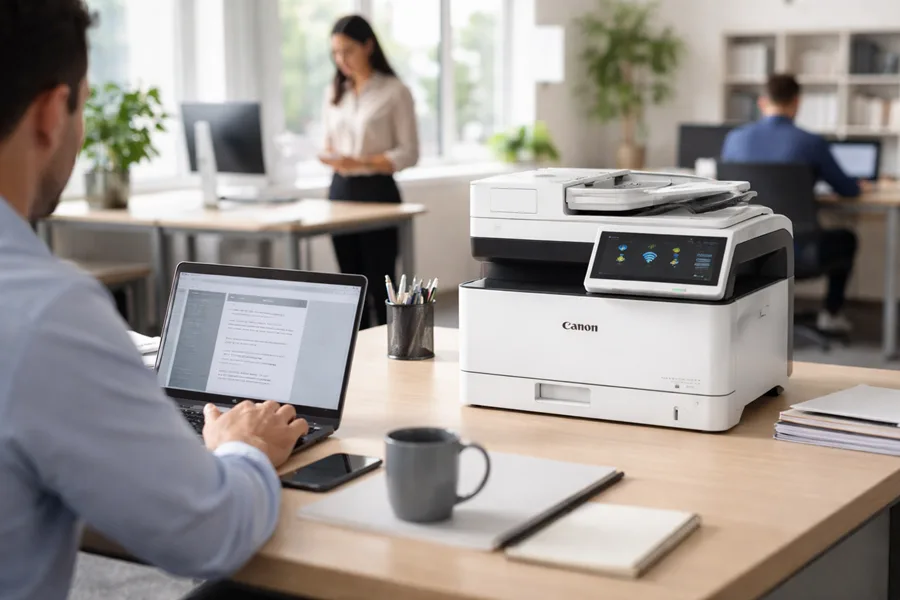
The first step is to connect the printer directly to your wireless router. This critical handshake enables communication with all other devices on the network and is typically managed through the printer’s built-in touchscreen display.
- Locate Network Settings: On the printer’s control panel, navigate to “Settings,” “Network,” or “Wireless Setup,” often indicated by a Wi-Fi icon.
- Select Your Network: The printer will scan for available wireless networks (SSIDs). Choose your official business network. Avoid guest networks, which are often firewalled and may block communication with company computers.
- Enter the Password: Carefully input your Wi-Fi password. This field is case-sensitive, so verify capital letters and special characters before confirming the connection.
Once connected, the printer should display a solid blue Wi-Fi indicator light. At this point, it has an IP address on your network. For advanced configurations, you may need to know this address. Our guide explains how to find your printer IP address.
Connecting From Your Computer
With the printer successfully on the network, the final step is to add it to your computer. Modern operating systems have streamlined this process significantly.
For Windows Users:
Navigate to Settings > Bluetooth & devices > Printers & scanners. Click the “Add device” button. Windows will scan your network, and your printer should appear in the list. Select it and follow the on-screen prompts to complete the installation.
For macOS Users:
Open System Settings and select Printers & Scanners. Click the “Add Printer, Scanner, or Fax…” button. Your Mac will scan the local network. When your printer appears, select it and click “Add” to finalize the setup.
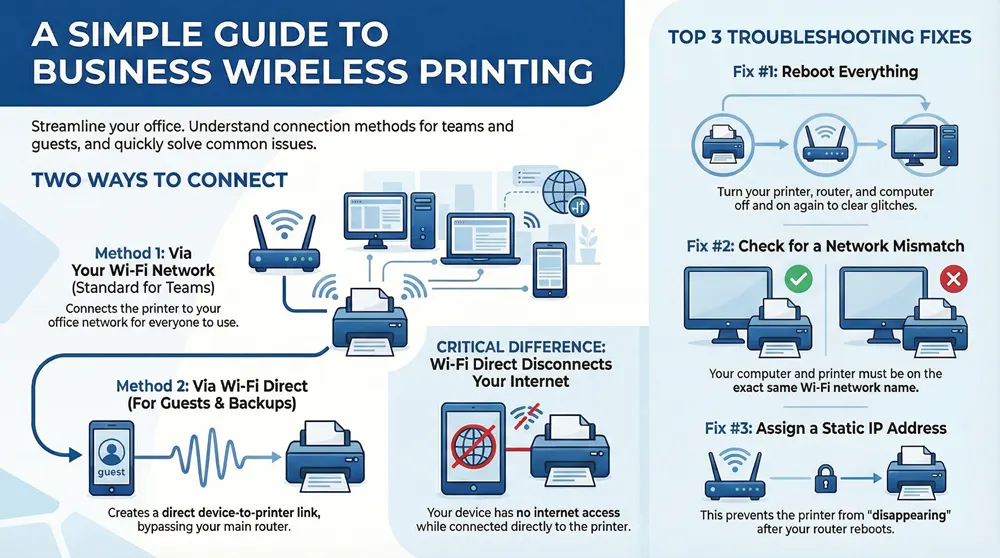
Key Takeaway: For a reliable connection, ensure your computer and the printer are on the exact same network. We have observed countless connectivity issues where a computer is on “OfficeWiFi-5G” while the printer is on “OfficeWiFi-2.4G.” This mismatch can prevent the computer from discovering the printer.
Using Wi-Fi Direct for Cable-Free Printing
In situations where the primary office network is unavailable or a guest needs to print without gaining full network access, Wi-Fi Direct provides an invaluable alternative. This technology allows a computer or mobile device to establish a direct, secure connection to the printer, completely bypassing your router.
Wi-Fi Direct creates its own small, temporary network. Your device connects to the printer’s signal as if it were a standard Wi-Fi hotspot. It is the ideal solution when network access is restricted, unavailable, or impractical.
The demand for such router-free connections is growing. For instance, market projections indicate that wireless Bluetooth printers, which utilize a similar direct-connection protocol, are expected to grow at a CAGR of 6.1% through 2031. This trend underscores the business need for flexible printing options that are not solely dependent on traditional network infrastructure.
How to Activate and Connect
Activating Wi-Fi Direct is typically managed from the printer’s control panel. Navigate to the network or wireless settings menu and locate the “Wi-Fi Direct” option. Once enabled, the printer will begin broadcasting its own network name (SSID), which often includes the model name (e.g., “DIRECT-HP-OfficeJetPro”).
From your computer or mobile device, open the list of available Wi-Fi networks. Select the printer’s SSID and enter the password, which is usually displayed on the printer’s screen or a printed information sheet. Once connected, you can print as you normally would. For detailed mobile instructions, see our guide on how to print directly from your iPad.
Expert Tip: Remember that while connected via Wi-Fi Direct, your device will not have internet access through your primary network. You must disconnect from the printer’s network and reconnect to your standard Wi-Fi to regain internet access.
Fixing Common Wireless Connection Problems
Even with a proper setup, wireless printers can encounter connectivity issues, such as a computer being unable to find the printer or a persistent “printer offline” message. These problems are common but typically resolvable with targeted troubleshooting.
Before delving into complex settings, perform a simple power cycle. Turning your router, computer, and printer off and on again can resolve many transient connection glitches by clearing temporary errors and forcing all devices to re-establish their network connections.
Diagnosing the Core Issue
If a reboot does not resolve the issue, the next step is to diagnose the root cause. The most common culprit is a network mismatch. Your printer and computer must be on the same Wi-Fi network to communicate. A laptop might automatically connect to a guest network or a different frequency band (e.g., “Office-5GHz” instead of “Office-2.4GHz”), which will make the printer invisible to it.
This is where understanding your connection options is beneficial. If the main network is malfunctioning, Wi-Fi Direct serves as an excellent backup.
The primary advantage of Wi-Fi Direct is that it provides a reliable alternative when your primary network is unstable or unavailable, ensuring business continuity.
Another common issue, particularly on Windows devices, is a stalled print spooler. This background service manages print jobs, and if it crashes, new documents cannot be processed.
Expert Insight: Restarting the Print Spooler service is a proven fix for a stalled print queue. Open the “Services” application in Windows, locate “Print Spooler,” and click Stop, then Start. This action often clears stuck jobs instantly without requiring a full system reboot.
Advanced Troubleshooting Steps
If basic troubleshooting fails, investigate your network’s security settings. A firewall, if overly restrictive, may be blocking the communication ports required by your printer. To test this, temporarily disable the firewall on your computer. If printing resumes, you have identified the problem. You will then need to configure your firewall to add an exception for your printer.
Occasionally, the issue lies with the network itself rather than the printer. If multiple devices are experiencing connectivity problems, it is wise to broaden your diagnostic approach. Learning how to troubleshoot network issues fast can help you determine if a larger problem is at play. A systematic process helps isolate the fault to either the printer, the computer, or the underlying network infrastructure.
Optimizing Your Network for Reliable Printing
In a business environment, a printer that frequently disconnects from the network is a direct impediment to productivity. To create a truly reliable printing system, it is essential to move beyond the default setup and implement professional best practices that ensure your printer is always accessible.
Assigning the printer a static IP address is one of the most effective optimizations. By default, routers often assign IP addresses dynamically, meaning a printer’s address can change after a router reboot. When this occurs, computers can no longer locate it, resulting in “printer offline” errors. A static IP address makes the printer’s location on the network permanent, eliminating this common point of failure.
Fine-Tuning Your Wireless Environment
The printer’s physical placement and the strength of the Wi-Fi signal are critical factors for stable performance. Before deciding on a location, use a mobile device to test the Wi-Fi signal strength in that specific spot. A weak or intermittent connection will inevitably lead to dropped print jobs and slow performance.
Ensuring a strong connection for all office devices is fundamental to operational success. If you are experiencing widespread connectivity issues, it may be beneficial to review strategies for optimizing your home network setup, as many of these principles apply directly to small business environments.
Finally, do not neglect routine maintenance. Establish a schedule for checking and installing the latest firmware and driver updates for your printer. Manufacturers release these updates to patch security vulnerabilities, enhance performance, and resolve known connectivity bugs.
Key Insight: Proactive maintenance is critical. Outdated firmware is a frequent cause of intermittent connection problems that are difficult to diagnose with basic troubleshooting. It can also create security risks for your entire network.
This focus on a robust network foundation is essential as wireless technology becomes integral to more business tools. The rise of wireless receipt printers in mobile POS systems, for example, demonstrates how heavily modern businesses depend on reliable wireless connections for core daily operations.
Your Wireless Printing Questions Answered
Even with a step-by-step guide, specific questions can arise. Here are answers to some of the most common inquiries we receive from our business clients.
Can I Connect to a Wireless Printer Without Wi-Fi?
Yes. Most modern wireless printers support either Wi-Fi Direct or Bluetooth connectivity. These technologies create a direct, private connection between your device and the printer without needing a router. This is an excellent solution for providing temporary printing access to guests without compromising your main network's security, or as a reliable backup if your office Wi-Fi is down.
Why Does My Printer Keep Saying It’s Offline?
The "printer offline" error is typically a symptom of a communication failure. First, verify that the printer is powered on and its Wi-Fi indicator light is solid, not blinking. Next, confirm that your computer and the printer are connected to the exact same network. A common mistake is for a laptop to connect to a guest network or a different Wi-Fi band (e.g., 5GHz instead of 2.4GHz), making the two devices invisible to each other.
The fastest fix is often a full restart. Powering down your printer, router, and computer forces all devices to re-establish their network connections from a clean state and resolves a majority of "offline" errors.
Do I Really Need to Install the Manufacturer's Drivers?
For basic printing functions, modern operating systems like Windows and macOS can often automatically detect the printer and install generic drivers that work sufficiently. However, to access advanced features such as scanning, checking toner levels, or performing maintenance routines, installing the full software suite from the manufacturer is highly recommended. This ensures you can utilize every feature of the device and maintain the most stable and reliable connection.
At 1-800 Office Solutions, we provide more than just equipment; we deliver comprehensive managed print services designed to optimize your business operations. From initial setup and network integration to ongoing support and supply management, our experts ensure your printing infrastructure is reliable, secure, and cost-effective.
Discover our Managed Print Services and get a custom quote today!