

Complete Guide to Common Printer Error Codes

Printer Error Codes
When choosing a multi-function printer (MFP) for your office staff, durability is essential. We’ve often heard from local businesses about printer error codes popping up unexpectedly, disrupting workflows and causing frustration.
At 1800 Office Solutions, we collaborate with leading brands like HP to offer our customers durable, innovative, practical, and cost-effective printers. Our goal is to help businesses find office technology solutions that minimize downtime and boost productivity.
Whether you’re dealing with a persistent printer error, cartridge issues, toner problems, or a stubborn paper jam, we have the expertise to fix these problems efficiently. We also provide support for firmware updates to prevent error messages and ensure smooth print jobs.
Common Printer Error Codes
At 1800 Office Solutions, our Support Team handles office technology inquiries from our customers. Our team consists of trained Systems Engineers who specialize in networking, SMB and SMTP scanning, and all technologies related to your MFP. Our engineers ask the right questions to diagnose the issue accurately and can guide customers through fixes or provide remote assistance.
1. Connectivity Problems
If an error has occurred and persists, try printing a Windows or CUPS Test Page. This will help determine if the problem is specific to a particular document, type of document, or application.
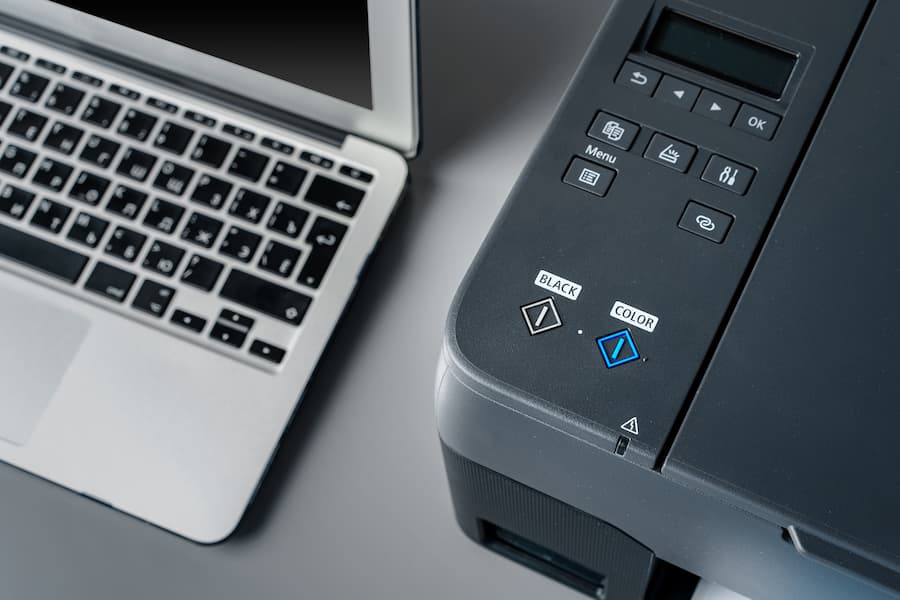
Check connectivity by pinging your printer and verifying the IP address. Additionally, see if anyone else can print. If these steps don’t resolve the issue, turn the printer off and on again. If the error persists, contact technical support for further assistance.
2. Print Output Issues
If your printer is producing pages of gibberish, check the print driver language and ensure it is using a PCL or UFR (for Canon printers only) driver. If printing from a PDF, select “Print as Image” in Adobe Acrobat under File > Print > Advanced.
If you see a “load paper” message on the printer despite having paper in the machine, read the message carefully. Verify that the printer is loaded and configured for the correct paper size, orientation, and type. The message will often specify the exact paper type, orientation, and size the printer requires.
3. Unable to Scan

If you are unable to scan to a shared folder:
- Verify that the user’s permissions are configured correctly, the password is valid, and the specified folder path is correct.
- Ensure you can access the folder from a different PC and save a file to it.
- Check the “Scan Log” for any listed error codes.
If you are unable to scan to email:
- Check for an error code on your MFP.
- Verify that the SMTP settings are configured correctly.
- Ensure the proper gateway, domain, and DNS server(s) are specified under the MFP’s network settings.
- Confirm which SMTP port is required by your email server.
- Ensure the password for the account configured in SMTP has not been changed.
4. Print Quality Problems
If the problem occurs with both prints and copies, it is likely a physical issue rather than a configuration problem. Contact our 1800 Office Solutions Customer Care Team to set up a service call.
If the problem occurs only when copying, ensure that the glass and any plastic parts of the document feeder are clean. If the issue persists, call our 1800 Office Solutions Customer Care Team to arrange a service call.
If the problem occurs only with prints, verify that the artifact is not in the file itself. If the issue continues, contact us.
5. Paper Jam Problems
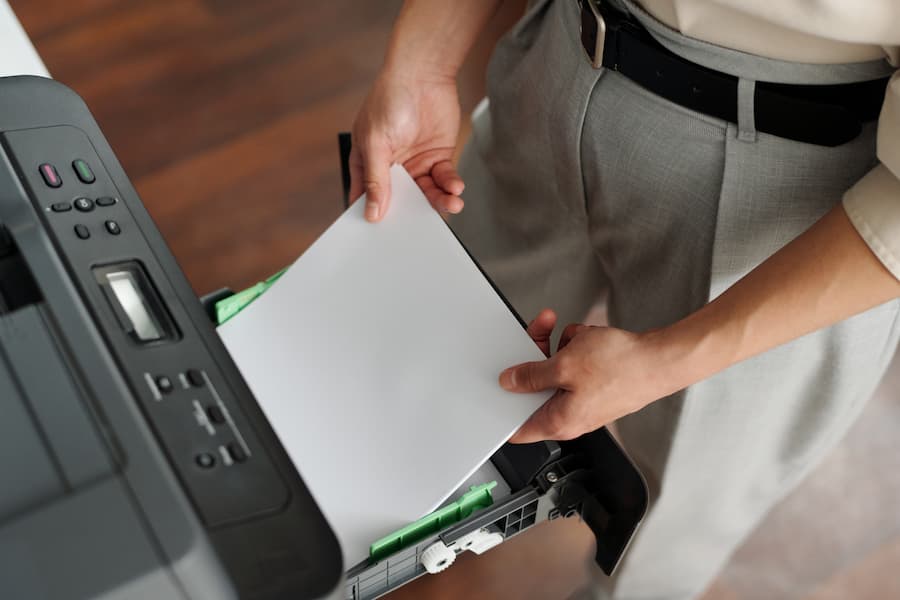
Paper jams are a common printer issue that can disrupt your workflow. To resolve a paper jam, first, turn off the printer and unplug it. Gently remove any visible jammed paper, being careful not to tear it. Check the paper tray and internal rollers for any remaining bits of paper or obstructions. Ensure the paper is loaded correctly and not overfilled. If the error persists, consult the printer’s manual for specific instructions related to your model.
For persistent issues, contact our 1800 Office Solutions Customer Care Team for assistance. Regular maintenance can help prevent future paper jams.
6. Toner Low Message
A “Toner Low” message indicates that your printer’s toner cartridge is nearing the end of its life. When this message appears, it’s advisable to have a replacement toner cartridge ready to avoid interruptions. To extend the life of the current cartridge, you can gently shake it to redistribute the toner inside.
However, this is a temporary fix. Ignoring the “Toner Low” warning can lead to poor print quality and eventually halt printing altogether.
7. Memory Overflow
A “Memory Overflow” error occurs when the printer’s memory capacity is exceeded by the print job. This can happen with large, complex documents or high-resolution images. To resolve this issue, try reducing the size or resolution of the document.
You can also print the document in smaller sections. Additionally, clearing the print queue and restarting the printer can help. If the problem persists, consider upgrading the printer’s memory if possible.
8. Print Overrun
A “Print Overrun” error occurs when the printer cannot process the data from the computer quickly enough to complete the print job. This is often due to large or complex documents that exceed the printer’s processing capabilities.
To resolve this issue, try reducing the complexity of the document by simplifying graphics or lowering the resolution. Printing in smaller batches can also help. Additionally, ensuring your printer’s firmware is up to date may improve its performance. If the error persists, consider upgrading the printer’s memory.
How do I check printer errors?
To check printer errors, start by accessing the printer’s control panel or software interface. Look for an “Error” or “Status” section where current errors are displayed. Additionally, printers often have indicator lights or codes that signal specific issues like paper jams, low toner, or connectivity problems.
Refer to the printer’s manual or online support resources for interpreting these indicators. If using a computer, check the print queue for pending jobs or error messages. Regularly inspecting the printer physically for jams, obstructions, or abnormal sounds can also help diagnose issues. For complex problems or persistent errors, contact technical support or consult a professional.
Conclusion
In conclusion, maintaining the smooth operation of your office printers is crucial for productivity. Addressing common issues such as paper jams, toner low messages, memory overflow, and print overruns promptly can minimize downtime. At 1800 Office Solutions, we are dedicated to providing durable, innovative, and cost-effective printing solutions tailored to your business needs.
Our trained teams are ready to assist with any technical support required, ensuring your office technology runs efficiently. For persistent issues or expert guidance, don’t hesitate to contact us. With proper maintenance and timely interventions, you can ensure optimal performance from your office printers.
 Office & IT Equipment Repairs | Managed Print & Cybersecurity, Premium Office Copier & Printer Solutions | Leases & Repairs