


What Does Collate Mean in Printing? Learn How To Use It Simply!

Unlock Printer Secrets: What Does “Collate” Really Mean?
What Is Collating in Printing?
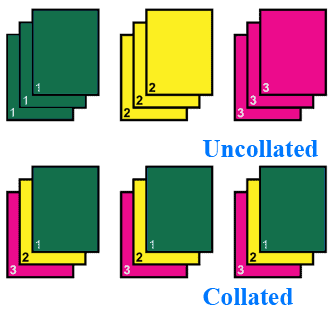
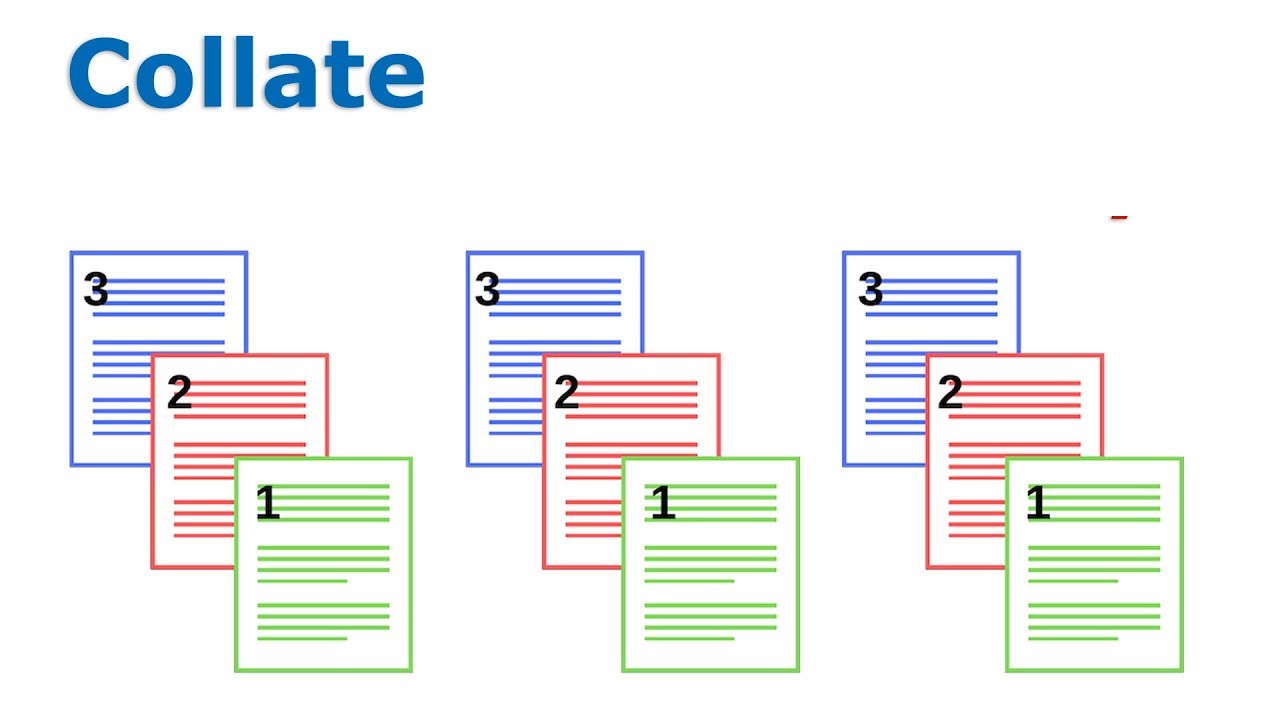
Collating is the process of printing multiple copies of a multi-page document so each copy comes out as a complete, correctly ordered set. For example, if you print three copies of a five-page report with collate on, the output will be 1–5, 1–5, 1–5. If collate is off, the printer will produce 1–1–1, 2–2–2, 3–3–3 instead, leaving you to assemble the sets manually.
How Does Collation Work in Your Printer?
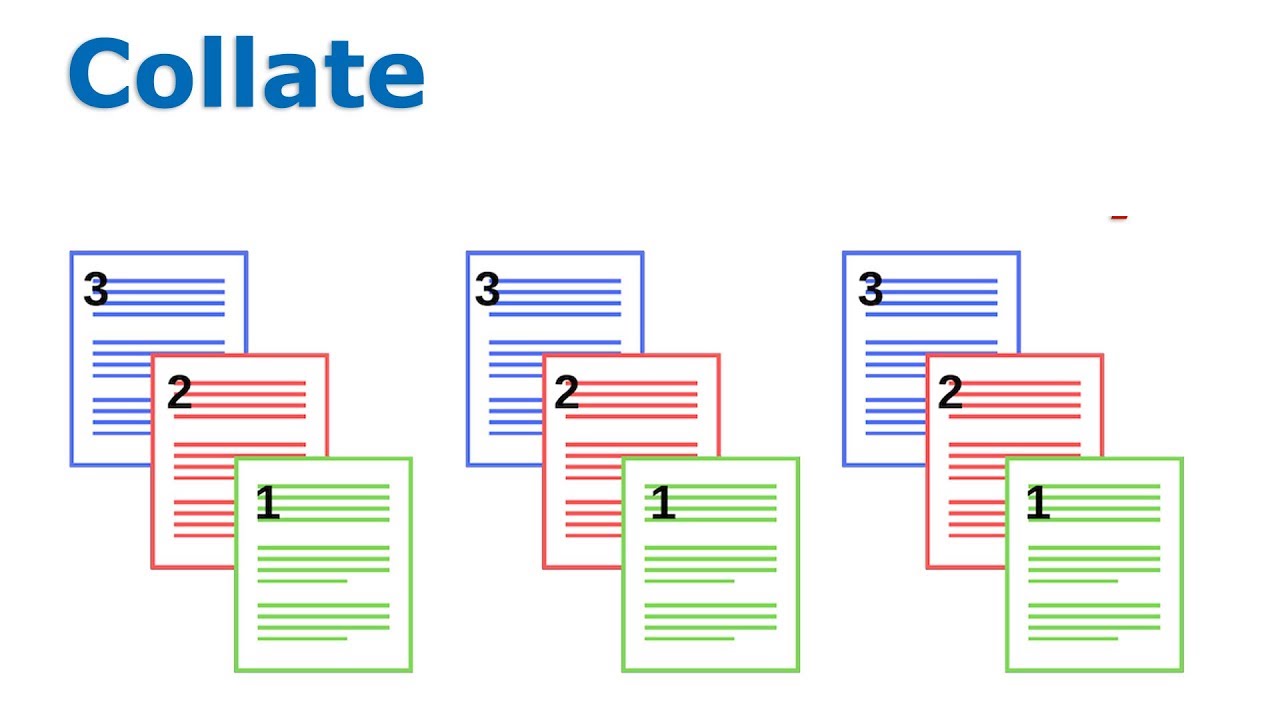
The main difference is ordering: collated printing yields finished sets in the right sequence, while uncollated output groups identical pages together — useful in a few scenarios, but inconvenient when you need ready-to-hand packets.
The role of printer memory in collation.
Printer memory affects how well collating works on large or complex jobs. The device stores document data so it can reproduce pages in the correct order for each copy. For long reports or high-copy runs, a printer with more memory will perform more reliably and faster. If memory is tight, split the job into smaller batches or use a higher-capacity device to avoid errors.
Benefits of Collated Printing
1. Automatically organizing pages cuts down on manual sorting and speeds up distribution.
Using the collate option saves time and cuts repetitive work. For large print jobs, automatic ordering can save minutes — or even hours — of manual assembly and ensures every set is complete.
2. Documents come out ready to use or hand out immediately.
Collated prints arrive as finished packets, so you don’t have to pause before meetings, classes, or mailings. That professional, polished look matters for client materials and official documents.
3. Each set is complete and correctly ordered, lowering the risk of missing or duplicated pages.
Collated vs. Uncollated: What’s the Difference?
Difference between collated and uncollated
Collated printing produces complete sets in sequence: 1–2–3, 1–2–3, 1–2–3 — ideal for multipage documents like reports or booklets. Uncollated printing groups identical pages together: 1–1–1, 2–2–2, 3–3–3. That approach can be helpful if you’re distributing single pages to different people or plan to bind or assemble manually later. Choose the method based on how you’ll use the printed output.

Common Use Cases for Collated Printing
Step-by-Step: Adjusting Collate Settings
Open Print Settings
Open the print dialog from your app (for example, Microsoft Word, Adobe Acrobat, or Google Docs). A quick shortcut is Ctrl+P (Windows) or Cmd+P (Mac).
Find the Collate Option
Choose Your Collating Preference
Enable Collating
Check this option to produce complete sets — for example, pages 1–5 in order for each copy. It’s best for handouts, booklets, and presentations.
Disable Collating
Uncheck the option if you want the printer to group copies of each page together — e.g., all copies of page 1, then all copies of page 2. That’s useful when you plan to bind or assemble manually.
 Pro Tip:
 Pro Tip:
Many multifunction printers let you set collating as a default in the device’s control panel or admin interface — handy if you print collated jobs regularly.
Example of a Print Dialog Box: Selecting the Collate Pages Option
How to select collate across different printers.
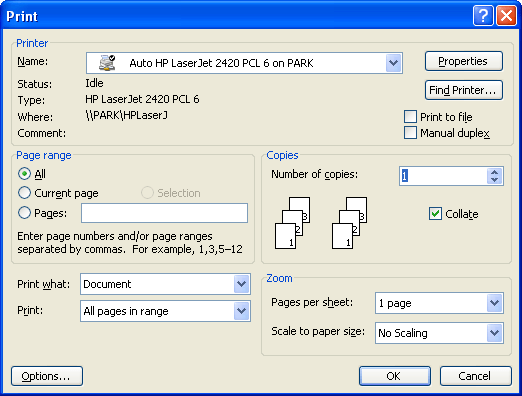
1. Access the Print Dialog Box:
2. Locate the Collate Option:
3. Select Collate:
4. Adjust Other Print Settings:
5. Preview and Print:
Tips on print settings for optimal results.
1. Select the Right Paper Type:
Match the printer settings to your paper — glossy, matte, or standard — for the best results. See our guide on paper weights for reference.
2. Adjust Print Quality:
3. Orientation and Size:
4. Color Settings:
5. Double-Sided Printing:
6. Margins and Layout:
7. Preview Before Printing:
8. Test Print:
How to do Collation in Booklet and Book Printing: A Crucial Step

Manual vs. Automatic Collation: Understanding the Options
Exploring manual collation and its challenges.

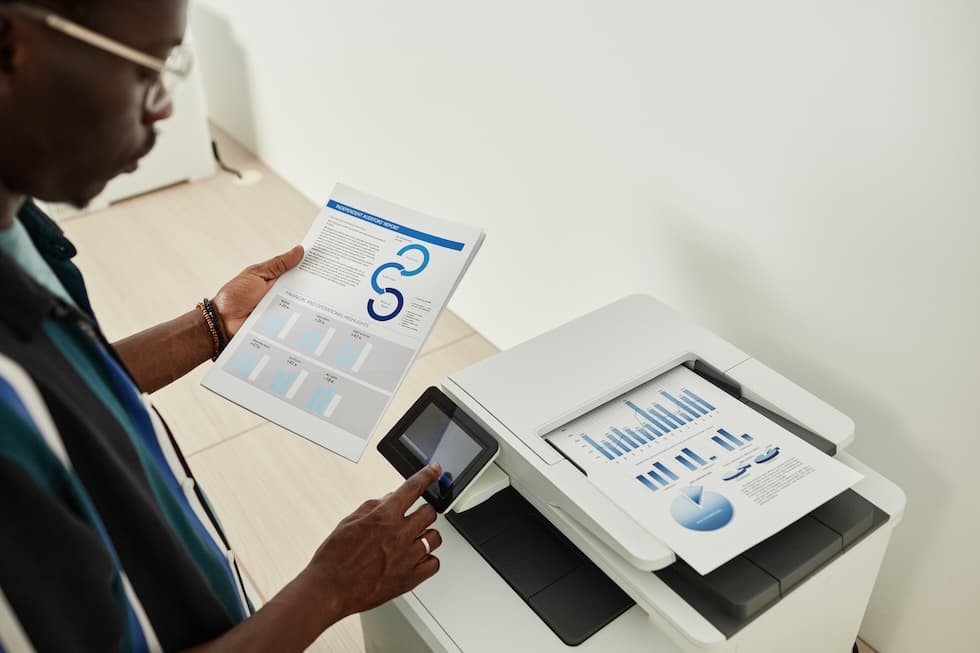
In short, manual collation works for quick, one-off tasks; automatic collation is better for scale, speed, and accuracy.
Troubleshooting Common Collation Issues
Addressing common problems encountered with collation.
1. Incorrect Page Sequence:
Pages out of order often come from the document setup or wrong print settings. Double-check your file’s page order and confirm the collate option is enabled before printing.
2. Printer Memory Limitations:
Limited memory can cause errors with large jobs. Try splitting the job into smaller batches or use a printer with more memory for big reports.
3. Software and Driver Issues:
Outdated or corrupted drivers can disrupt collation. Keep printer drivers and software up to date; reinstalling the driver often resolves the problem.
4. Hardware Malfunctions:
Mechanical faults can prevent proper collation. Regular maintenance helps — if you suspect hardware trouble, consult the printer manual or contact support.
5. Misfeeds and Paper Jams:
6. Output Tray Capacity:
Overfilled output trays can mix sets. Remove finished batches regularly during large jobs to keep sets neat.
Keeping these issues in mind—and doing basic maintenance and checks—will reduce collation problems and keep your print jobs running smoothly.
Tips and tricks for efficient collation.
- Pre-Check Document Order: Review your document before printing to ensure pages are in the correct sequence.
- Utilize Printer Preview: Use print preview to confirm layout and order before you print.
- Select Appropriate Printer Settings: Make sure the collate option is enabled when needed and adjust paper size and quality to match your job.
- Optimize Printer Memory Usage: For large jobs, split the task into smaller batches if memory is limited.
- Regularly Update Printer Drivers and Software: Up-to-date drivers reduce compatibility problems that can affect collation.
- Use High-Quality Paper: Good paper reduces jams and misfeeds that can disrupt collation.
- Monitor Paper Alignment and Feed: Properly loaded paper prevents misfeeds and keeps page order intact.
- Keep the Printer Maintained: Regular cleaning and maintenance help avoid mechanical issues during big jobs.
- Understand Your Printer’s Capabilities: Know your printer’s limits so you can plan jobs that won’t exceed its capacity.
- Sort Manually When Necessary: For small or one-off jobs where automatic collation isn’t available or reliable, manual sorting may still be the fastest option.
FAQ’s
What does ‘collate’ mean in printing?
Collate means collecting and arranging printed pages into a set order so each copy of a multi-page document comes out as a complete, ordered packet.
What is the difference between collated and uncollated printing?
Collated printing produces complete sets in sequence (1–2–3, 1–2–3). Uncollated printing groups identical pages together (1–1–1, 2–2–2). Use collated for ready-to-distribute packets and uncollated when you need batches of single pages.
When should I use ‘collate’ in printing?
Use collate when printing multiple copies of a multi-page document and you want each copy to be ready to hand out without manual assembly.
What is the benefit of collated printing?
Collated printing saves time and reduces errors by delivering complete, correctly ordered document sets straight from the printer.
What does ‘collate copies’ mean?
“Collate copies” tells the printer to organize pages so it prints full, ordered copies of the document instead of printing each page multiple times separately.
How does collated printing work?
With collated printing, the printer prints the full sequence of pages once, then repeats that sequence until it reaches the number of copies you requested.
What is an example of collated printing?
If you print three copies of a five-page document with collate on, the output will be pages 1–5, 1–5, 1–5 — three complete sets in order.
What does ‘uncollated’ mean when printing?
Uncollated printing means the printer prints all copies of page 1, then all copies of page 2, and so on, which requires manual assembly to make complete sets.
Can I collate when printing double-sided?
Yes. Collate works with single- or double-sided printing — the printer will still produce each copy in the correct sequence whether pages are printed one- or two-sided.
How does ‘collate’ affect the organization of printed material?
Collate ensures printed material is organized into complete, correctly ordered sets, making distribution straightforward and reducing the chance of errors.
 Protect Your Business with Backup and Disaster Recovery Systems, Gposts - Your Guide to Monochrome vs Grayscale Printing Tips, Office & IT Solutions 2025: Cybersecurity, Managed Print & More