


What Does Collate Mean in Printing? Learn How To Use It Simply!

Unlock Printer Secrets What Does 'Collate' REALLY Mean
Unlock Printer Secrets What Does “Collate” REALLY Mean?If you’ve ever stared at the word “Collate” in your print settings and wondered what it actually does...
Unlock Printer Secrets: What Does “Collate” Really Mean?
Ever hovered over the word “Collate” in your print dialog and wondered what it actually does? You’re not alone. Collate is a small setting with a big effect—especially when you’re printing multiple copies of a multi-page file.
Put simply, collating tells the printer how to order pages. Turn it on and the printer will produce complete sets in sequence (pages 1–5, then 1–5 again). Leave it off and the printer will print all copies of page 1, then all copies of page 2, and so on. For anyone preparing handouts, reports, or presentation packets, using collate correctly saves time and keeps everything organized.
Collating matters most in professional settings where neat, accurate distribution is important. Without it, you may end up spending extra minutes—sometimes much longer—sorting stacks of loose pages. With collate enabled, each person gets a finished packet straight from the output tray, reducing errors and making your print workflow smoother.
If you’re unfamiliar with the term, to collate simply means to gather and arrange printed pages into the right order. It’s especially handy when you need several copies of the same multi-page document: it removes the manual work of assembling each set and cuts the chance of mixing pages up during large print jobs.
What Is Collating in Printing?
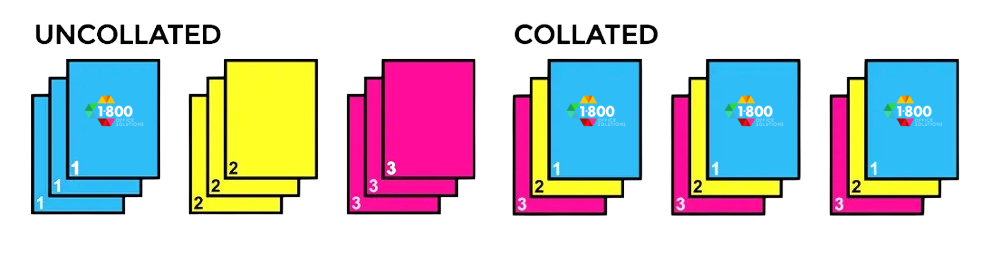
Collating is the process of printing multiple copies of a multi-page document so each copy comes out as a complete, correctly ordered set. For example, if you print three copies of a five-page report with collate on, the output will be 1–5, 1–5, 1–5. If collate is off, the printer will produce 1–1–1, 2–2–2, 3–3–3 instead, leaving you to assemble the sets manually.
How Does Collation Work in Your Printer?
Collation is simply the printer following a sequence for each copy. When collate is active, the printer prints the full document, then repeats that sequence for the next copy until it reaches the number you requested.
Here’s a quick example: say you have a five-page document and need ten copies. With collate off, the printer prints ten copies of page 1, then ten copies of page 2, and so on—resulting in an unsorted pile. With collate on, it prints pages 1–5 as one complete set, then repeats that set nine more times. The result: ten neatly ordered packets, ready to hand out. This is especially useful for multi-page documents where order matters and when you want to avoid time-consuming manual sorting.
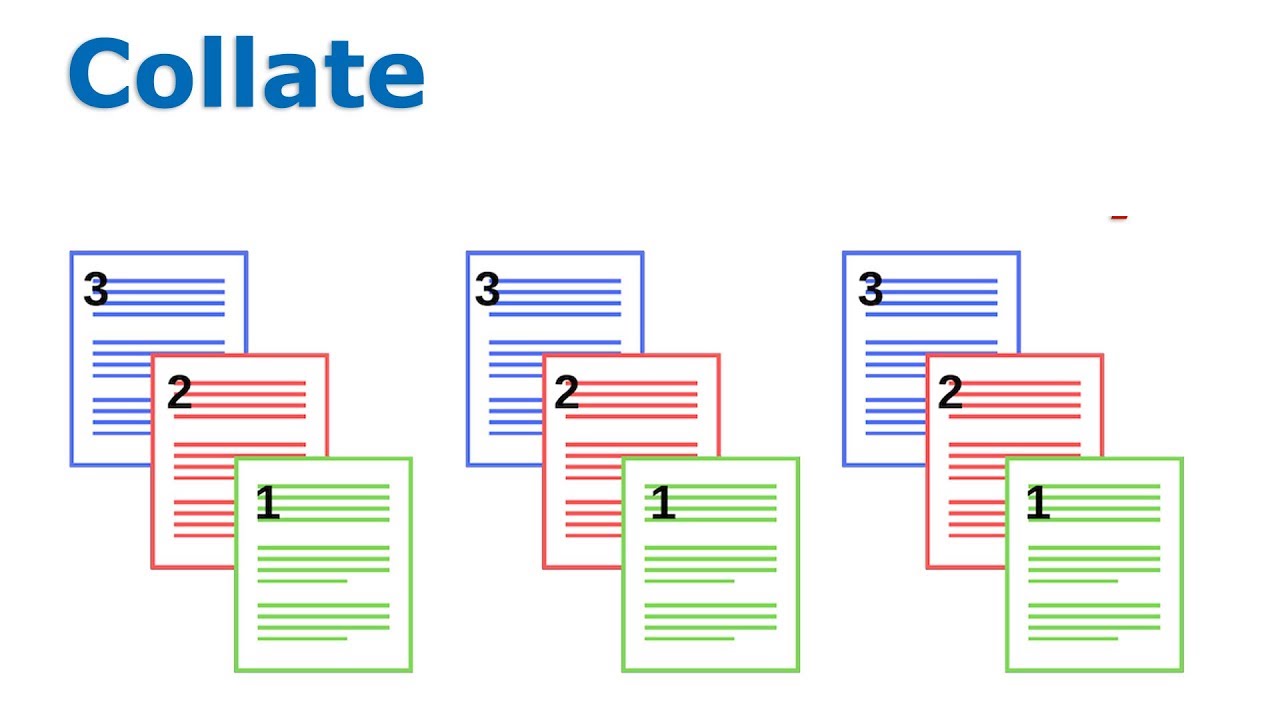
The key difference between collated and uncollated output is ordering. Collated printing gives you finished sets in the correct sequence. Uncollated printing groups identical pages together—useful in a few scenarios, but inconvenient when you need ready-to-distribute packets.
The role of printer memory in collation.
Printer memory plays a big role when collating large or complex jobs. The printer stores the document data so it can reproduce pages in the right order for each copy. For long reports or many copies, a printer with more memory will handle the job more reliably and faster. If memory is limited, consider splitting the job into smaller batches or using a device with higher capacity to avoid errors.
Benefits of Collated Printing
1. Automatically organizing pages cuts down on manual sorting and speeds up distribution.
Using the collate option saves time and reduces repetitive work. For big print runs, automatic ordering can shave off minutes—or hours—of assembly time, and it helps ensure every set is complete and in the right order.
2. Documents come out ready to use or hand out immediately.
Collated prints arrive as finished packets, so you don’t have to stop and assemble copies before meetings, classes, or mailings. That polished, professional look is especially important for client materials and official reports.
3. Each set is complete and correctly ordered, lowering the risk of missing or duplicated pages.
Collation helps prevent mistakes like missing pages or duplicated sections, which can undermine the quality of your materials. It’s a small step that keeps your documents accurate and professional.
Collated vs. Uncollated: What’s the Difference?
Difference between collated and uncollated
Collated printing produces complete sets in sequence: 1–2–3, 1–2–3, 1–2–3. That’s ideal for multipage documents like reports or booklets. Uncollated printing groups identical pages together: 1–1–1, 2–2–2, 3–3–3. That approach can be useful when you want to distribute single pages to different people or when you plan to bind or collate manually later. The choice depends on how you’ll use the printed output.
Common Use Cases for Collated Printing
Collating isn’t just a checkbox—it’s a practical way to save time and avoid fuss when printing multi-page materials. Here are common scenarios where collated printing helps most:
🗂️ Reports and Business Presentations
From sales reports to client proposals, collated printing makes sure every packet is complete and in order so you can present confidently.
🧰 Instruction Manuals and Technical Guides
Manuals and guides need to follow steps exactly. Collating guarantees the instructions read in the right sequence, reducing confusion and mistakes.
📚 Educational Materials and Student Handouts
Teachers and administrators often need complete booklets or packets for students. Collate keeps every copy consistent and classroom-ready.
📝 Training Documents and Onboarding Kits
New-hire packets and training bundles should be complete and easy to use. Collated printing keeps forms, checklists, and handbooks together in the correct order.
📦 Marketing Packets and Promotional Bundles
For trade shows or sales meetings, collated packets ensure every prospect receives the same polished set of materials—no missing pages, no scrambling.
How to Enable or Disable Collated Printing
Whether you’re on a home printer or a commercial press, turning collate on or off is straightforward. Here’s how to do it step by step.
Step-by-Step: Adjusting Collate Settings
Open Print Settings
Open the print dialog in the program you’re using (for example, Microsoft Word, Adobe Acrobat, or Google Docs). A fast shortcut is Ctrl+P (Windows) or Cmd+P (Mac).
Find the Collate Option
Look for a checkbox, toggle, or dropdown labeled “Collate.” This option is commonly found under Page Setup, Printer Properties, or Advanced Settings, depending on your printer and driver.
Choose Your Collating Preference
Enable Collating
Check this option if you want the printer to produce complete sets—for example, pages 1–5 in order for each copy. This is best for handouts, booklets, and presentations.
Disable Collating
Uncheck the option if you prefer the printer to group copies of each page together—e.g., all copies of page 1, then all of page 2. That can be helpful if you plan to bind or assemble pages manually.
⚙️ Pro Tip:
Many multifunction printers let you set collating as a default in the device’s control panel or admin interface—handy if you print collated jobs regularly.
Example of a Print Dialog Box: Selecting the Collate Pages Option
How to select collate across different printers.
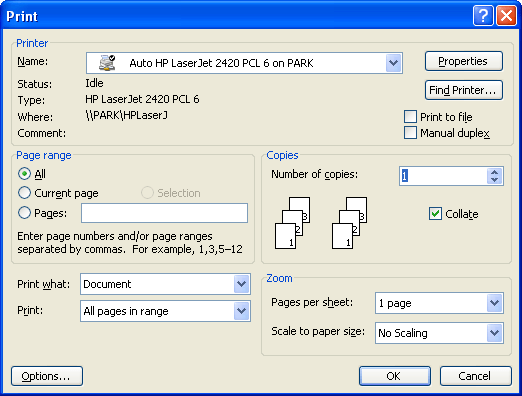
The exact layout of the print dialog varies by model, but the steps are similar. Here’s a quick checklist:
1. Access the Print Dialog Box:
Click Print in your document editor to open the dialog box—the control center for all printing options.
2. Locate the Collate Option:
Scan the dialog for “Collate” or a related setting. It might be in the main dialog or under Page Setup / Printer Properties.
3. Select Collate:
If it’s a checkbox, tick it. If it’s a dropdown, choose “Collated.”
4. Adjust Other Print Settings:
Set copies, color, paper size, and any other options before printing.
5. Preview and Print:
Use the preview to confirm page order, then click Print to start the job with collation on or off as chosen.
If you’re using a specific printer model, check its manual for exact steps. These general directions will get you collating correctly in most cases.
Tips on print settings for optimal results.
Good print settings avoid headaches. Try these practical tips to improve quality and reduce errors:
1. Select the Right Paper Type:
Match the printer settings to the paper you’re using—glossy, matte, or standard—to get the best results. See our guide on different paper weights for reference.
2. Adjust Print Quality:
Choose higher quality for presentation materials and a standard or draft setting for everyday prints to save ink.
3. Orientation and Size:
Confirm paper size and orientation (portrait or landscape) match your document layout to avoid formatting issues.
4. Color Settings:
Pick color for color documents and grayscale for black-and-white to conserve color ink when appropriate.
5. Double-Sided Printing:
Use duplex printing for booklets and long reports to save paper—just make sure your printer supports it and you set it correctly.
6. Margins and Layout:
Check margins and layout so content aligns correctly, which keeps documents looking professional.
7. Preview Before Printing:
Always use print preview to catch layout or ordering issues before you print.
8. Test Print:
Do a quick test page when trying new settings or printing important documents to avoid wasting materials.
Adjusting these settings to match your project will improve print quality and reliability.
How to do Collation in Booklet and Book Printing: A Crucial Step
Collation in book and booklet printing is essential to making sure pages appear in the correct sequence after folding, binding, and trimming. In this context, collation means arranging sections or pages so the finished product reads smoothly and logically.
Book projects often require pages printed in a specific order that accounts for binding and cutting. Printing software or presses handle this automatically, arranging pages so that each copy comes out complete and in the right sequence—critical for multi-chapter books or multi-section booklets.

For booklets—event programs, catalogs, or small manuals—proper collation ensures pages fold and turn in the intended order. Without it, the finished piece can become a jumble of pages, which defeats the purpose. In short, collation isn’t optional for book or booklet production—it’s a necessary step to ensure a professional result.
Manual vs. Automatic Collation: Understanding the Options
Exploring manual collation and its challenges.
Choosing between manual and automatic collation depends on scale, accuracy needs, and available equipment. Both methods have pros and cons.
Manual collation means physically sorting and stacking pages by hand. For small jobs this can work fine, but it’s slow and error-prone when copies or page counts grow. If you’re assembling dozens of multi-page sets, manual collation quickly becomes impractical.

Automatic collation uses the printer or print software to assemble pages in the correct order automatically. It’s faster, more consistent, and minimizes human error—especially important for high-volume or complex jobs like booklets or multi-chapter reports.
Automatic collation is ideal for consistency and efficiency. If you’re unsure which method fits your project, contact us for guidance based on your job size and equipment.
In summary, manual collation can work for quick, small tasks, but automatic collation is the better choice for scale, speed, and accuracy.
Troubleshooting Common Collation Issues
Addressing common problems encountered with collation.
When collation goes wrong, the result is usually mixed-up or incomplete sets. Here are frequent causes and how to fix them:
1. Incorrect Page Sequence:
Pages printed out of order usually result from document setup or printer settings. Double-check your file’s page order and confirm the collate option is enabled before printing.
2. Printer Memory Limitations:
Limited memory can cause errors with large jobs. Try printing in smaller batches or use a printer with more memory for big reports.
3. Software and Driver Issues:
Outdated or corrupted drivers can disrupt collation. Keep your printer drivers and software up to date; reinstalling the driver often fixes the problem.
4. Hardware Malfunctions:
Hardware faults can prevent proper collation. Regular maintenance helps—if you suspect a hardware issue, consult the printer manual or contact support.
5. Misfeeds and Paper Jams:
Paper jams and misfeeds interrupt the sequence. Use the correct paper type and size, align it properly, and keep the feed paths clean.
6. Output Tray Capacity:
Overfilled output trays can mix sets. Remove finished batches regularly during large jobs to keep sets neat.
Keeping these issues in mind—and doing basic maintenance and checks—will reduce collation problems and keep your print jobs running smoothly.
Tips and tricks for efficient collation.
Use these practical tips to make collation faster and more reliable:
- Pre-Check Document Order: Review your document before printing to ensure pages are in the right sequence.
- Utilize Printer Preview: Use print preview to confirm layout and order before you print.
- Select Appropriate Printer Settings: Make sure the collate option is enabled when needed and adjust paper size and quality to match your job.
- Optimize Printer Memory Usage: For large jobs, split the task into smaller batches if memory is limited.
- Regularly Update Printer Drivers and Software: Up-to-date drivers reduce compatibility problems that can affect collation.
- Use High-Quality Paper: Good paper reduces jams and misfeeds that can disrupt collation.
- Monitor Paper Alignment and Feed: Properly loaded paper prevents misfeeds and keeps page order intact.
- Keep the Printer Maintained: Regular cleaning and maintenance help avoid mechanical issues during large jobs.
- Understand Your Printer’s Capabilities: Know your printer’s limits so you can plan jobs that won’t exceed its capacity.
- Sort Manually When Necessary: For small or one-off jobs where automatic collation isn’t available or reliable, manual sorting may still be the fastest option.
Applying these tips will streamline your printing routine and reduce common collation headaches.
FAQ’s
What does ‘collate’ mean in printing?
Collate means collecting and arranging printed pages into a predetermined order so each copy of a multi-page document comes out as a complete set.
What is the difference between collated and uncollated printing?
Collated printing produces complete sets in sequence (1–2–3, 1–2–3). Uncollated printing groups identical pages together (1–1–1, 2–2–2). Choose collated for finished packets and uncollated when you need batches of single pages.
When should I use ‘collate’ in printing?
Use collate when you’re printing more than one copy of a multi-page document and you want each copy to be ready to distribute without manual assembly.
What is the benefit of collated printing?
Collated printing saves time and reduces errors by delivering complete, correctly ordered document sets straight from the printer.
What does ‘collate copies’ mean?
‘Collate copies’ means the printer organizes pages so it prints full, ordered copies of the document rather than printing each page multiple times separately.
How does collated printing work?
With collated printing, the printer prints the full sequence of pages once, then repeats that sequence until it reaches the number of copies you requested.
What is an example of collated printing?
If you print three copies of a five-page document with collate on, the output will be pages 1–5, 1–5, 1–5—three complete sets in order.
What does ‘uncollated’ mean when printing?
Uncollated printing means the printer prints all copies of page 1, then all copies of page 2, and so on, which requires manual assembly to make complete sets.
Can I collate when printing double-sided?
Yes. Collate works with single- or double-sided printing—your printer will still produce each copy in the correct sequence whether pages are printed one- or two-sided.
How does ‘collate’ affect the organization of printed material?
Collate ensures printed material is organized into complete, correctly ordered sets, making distribution and use immediate and error-free.