


Office 365 Hacks: Tips and Tricks You Need to Know

AI Overview:
This blog shows how to get more out of Microsoft 365 in 2025 by using powerful but often overlooked features—especially AI tools like Microsoft Copilot. Readers learn quick productivity wins (Focused Inbox, Flash Fill, Delay Delivery), smarter collaboration methods in Teams, OneDrive, and SharePoint, and time-saving automations with Power Automate. It also highlights essential security steps like MFA, DLP, and phishing protection.
In short, the guide explains how AI, automation, and built-in Microsoft 365 tools can help any business work faster, stay organized, and operate more securely.
Microsoft Office 365 tips and tricks: Master 2025
Why Microsoft Office 365 Tips and Tricks Matter for Your Business
Looking for microsoft office 365 tips and tricks to boost your team’s productivity? With many employees working remotely, mastering Microsoft 365’s hidden features is essential for staying competitive. Most users stick to the basics, missing out on powerful updates.
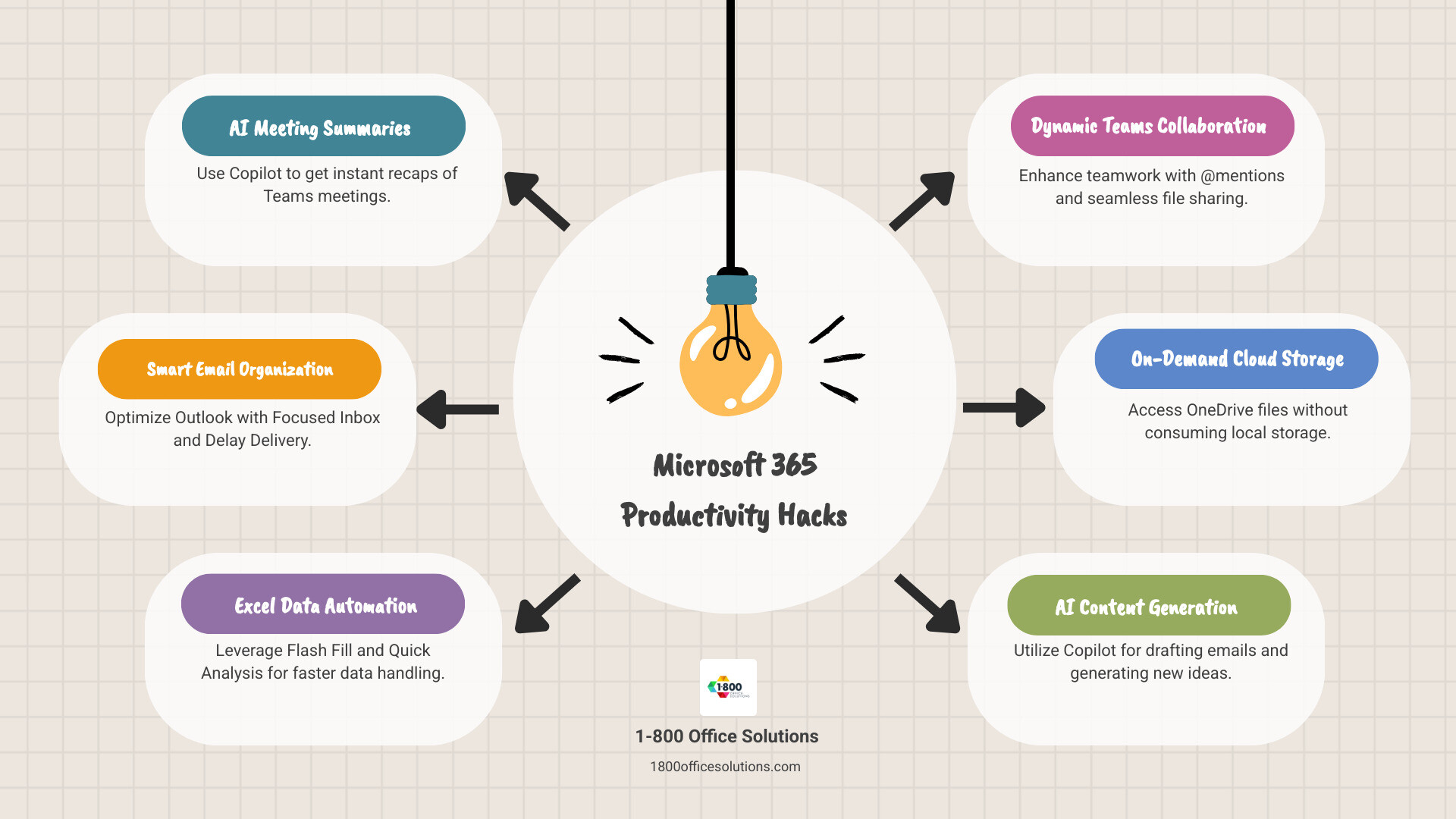
Quick Microsoft 365 productivity wins:
- Use Copilot to summarize meetings – Get caught up in seconds.
- Enable Focused Inbox – Automatically sort important emails.
- Try Flash Fill in Excel – Let AI auto-complete data entry.
- Schedule emails – Send messages at the perfect time with Delay Delivery.
- Pin important Teams chats – Keep priority conversations at the top.
- Use @mentions – Get specific people’s attention in busy group chats.
- Enable Files On-Demand – Access cloud files without using local storage.
Microsoft 365 is now an AI-powered ecosystem that automates tasks, improves collaboration, and secures data. From leveraging AI assistants like Copilot to streamlining email, these proven strategies will help you work smarter. The right Microsoft 365 hacks can save your team hours every week.
Microsoft office 365 tips and tricks word list:
- office admin tips
- Windows 11 vs Windows 10: What are the differences
- 15 advantages and disadvantages of remote work
Release AI Productivity with Microsoft Copilot
Meet your new digital assistant: Microsoft Copilot. This generative AI is revolutionizing daily workloads by embedding itself directly into your Microsoft 365 apps. Think of it as an efficient colleague who summarizes meetings, drafts tricky emails, and makes sense of complex Excel spreadsheets.
The real game-changer is that Copilot frees up your team’s mental energy for work that matters. Instead of deciphering long email threads or staring at a blank PowerPoint, your team can focus on strategy and creativity. Boosting Office 365 with AI Capabilities can transform your day-to-day operations.
Leverage AI with these Microsoft Office 365 tips and tricks
These microsoft office 365 tips and tricks will transform how you tackle time-consuming tasks.
Summarize meetings like a pro. Instead of reviewing hours of recorded Teams meetings, ask Copilot to “recap the entire meeting” or “summarize what I missed.” It pulls out key decisions and action items in seconds. Recap a Teams meeting and get back to work.
Tame overwhelming email threads. When added to a long email chain, just hit the “Summarize” button. Copilot delivers a clean summary at the top, so you can Summarize a long email thread and focus on what’s important.
Draft content that doesn’t sound robotic. Copilot provides a solid first draft for emails or social media posts, getting you 70-80% of the way there and helping you avoid the blank page.
Transform Word documents into presentations. Copilot can extract key points from a Word report and structure them into professional PowerPoint slides, saving you from manual copy-pasting.
Brainstorm when you’re stuck. Feed Copilot a project theme, and it will generate fresh ideas, outlines, or implementation plans, acting as a tireless thinking partner.
Make Excel data make sense. Ask Copilot to “analyze the year-to-date business results and summarize 3 key trends.” It will dig through your data to surface insights you might have missed.
Here are 5 powerful Copilot prompts for beginners:
- “Summarize this document/email thread, highlighting key decisions and action items.”
- “Draft an email to [Recipient] about [Topic], emphasizing [Key Point] and suggesting [Next Step].”
- “Create a presentation outline based on the main points of [Document Name].”
- “Generate 5 ideas for a marketing campaign for [Product/Service] targeting [Audience].”
- “Analyze the sales data in this Excel sheet and identify the top 3 performing products this quarter.”
Automate Repetitive Processes with Power Automate
While Copilot handles thinking tasks, Power Automate tackles repetitive digital chores like moving files, sending follow-ups, or entering data. It creates smart workflows that connect your apps and services, saving you hours.
Imagine automatically saving email attachments to OneDrive or getting Teams notifications for new project documents. These small automations add up. Power Automate also has security features, like applying sensitivity labels to confidential data in your workflows. It makes email management, data entry, and task scheduling effortless, ensuring you never miss critical notifications.
Boost Collaboration Across Your Team
With teams now scattered across offices and homes, effective collaboration is more critical than ever. Microsoft 365 provides a robust suite of tools to bridge these gaps and make teamwork seamless, regardless of location.

These microsoft office 365 tips and tricks for collaboration are about creating genuine connections and getting work done together. When used thoughtfully, these tools help you Be More Productive with Office 365 and build stronger team relationships.
Organize Communication and Projects in Microsoft Teams
Microsoft Teams is the central hub for workplace collaboration, connecting conversations, files, and projects. Teams Channels create dedicated workspaces for projects or departments, using Standard Channels for general updates and Private Channels for sensitive discussions.
Chat features go beyond basic messaging. You can use threaded conversations, emoji reactions, and @mentions to ensure important messages get seen. When you type @ followed by a name, the person gets a direct notification, cutting through the noise.
File sharing in Teams creates a single source of truth by storing files in SharePoint. The platform also includes robust video conferencing with screen sharing and virtual whiteboards. A lesser-known tip is to Chat with Yourself—a personal space for notes, links, and files that syncs across all your devices.
OneDrive and SharePoint eliminate lost files and version confusion. OneDrive for Business is your personal cloud storage, syncing files across all devices. Its AI-powered search can even summarize documents for you.
For team projects, SharePoint is ideal. It offers document libraries where multiple people can work on the same file simultaneously using the co-authoring feature. Version control provides a safety net, automatically saving previous versions of documents to help you Avoid Data Loss in Office 365. The Files On-Demand feature lets you see all cloud files in File Explorer but only downloads them when needed, saving local storage space.
Improve Teamwork with Loop, Planner, and Viva Goals
Microsoft’s newer tools address specific teamwork challenges.
Microsoft Loop creates dynamic, portable components—like a task list—that can be embedded in a Teams chat or email and stay perfectly synchronized everywhere. Microsoft Loop makes collaboration feel fluid and natural.
Microsoft Planner turns task lists into intuitive visual boards. You can assign tasks, set due dates, and track progress easily. It integrates with Microsoft To Do, helping you spot bottlenecks before they become problems.
Microsoft Viva Goals aligns your team with the organization’s bigger picture using the OKR (Objectives and Key Results) framework. When everyone understands how their work contributes to company goals, motivation and productivity increase.
Master Your Favorite Apps: Advanced Microsoft Office 365 Tips and Tricks
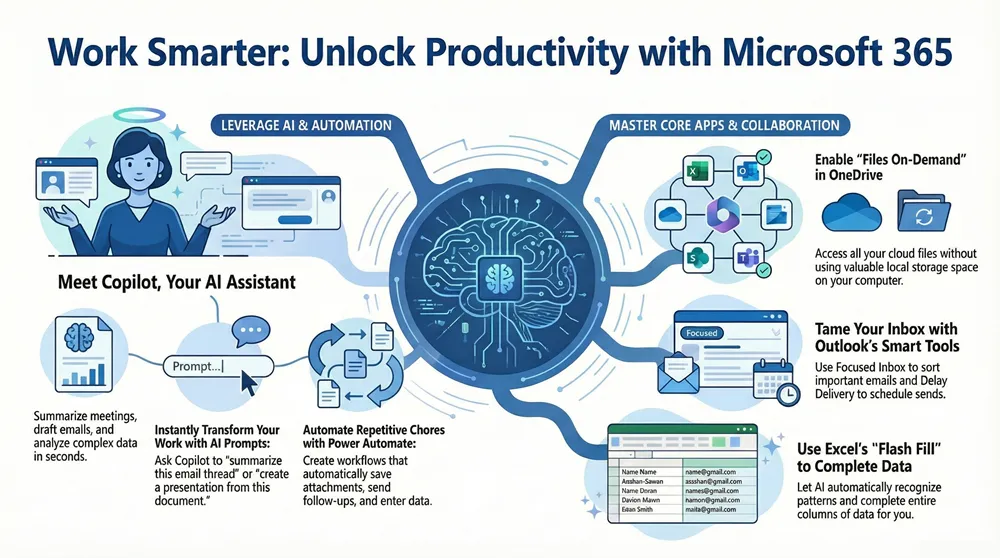
The applications you use daily are hiding powerful features. While most of us stick to the basics, these familiar tools contain microsoft office 365 tips and tricks that can dramatically boost productivity once you know where to look.
These shortcuts separate casual users from Microsoft 365 masters. Exploring 7 Must-Have Office 365 Add-Ons can open up even more functionality.
Optimize Your Inbox and Schedule in Outlook
Your inbox doesn’t have to control your day. Outlook can be a personal productivity command center.
- Focused Inbox: This feature learns your habits and automatically sorts important messages into a “Focused” tab, separating them from clutter.
- Quick Steps: Create one-click rules for repetitive email tasks, like moving messages to a folder and marking them as read.
- Delay Delivery: Write emails anytime and schedule them to arrive at the perfect moment, avoiding late-night interruptions.
- Recall a Message: If you and the recipient are on the same Exchange server, you can recall a sent message to fix a mistake.
- Shared Calendars & Scheduling Assistant: Eliminate back-and-forth emails by viewing team availability and letting the assistant find the best meeting times.
- Turn Emails into Tasks: Drag an email to the Tasks icon to instantly create a to-do item with the email’s context preserved.
Work Faster in Excel and Word
These core apps have incredible intelligence most users never find.
- Excel Flash Fill: Start typing a pattern (like extracting first names from a full name), and Excel will offer to complete the entire column for you (Ctrl+E).
- Quick Analysis Tool: Select data in Excel to get instant suggestions for formatting, charts, and totals.
- Excel Data Types: Link cells to live, external data like stock prices or geographic information that updates automatically.
- Word Dictation: Capture ideas by speaking directly into your document. It’s fast, accurate, and great for brainstorming.
- Focus Mode: Hide toolbars and ribbons in Word to create a distraction-free writing environment.
- Microsoft Editor: This AI writing assistant goes beyond spell-check to suggest improvements for clarity, conciseness, and style.
| Feature | Word Dictation | Microsoft Editor |
|---|---|---|
| Purpose | Speech-to-text, quick idea capture | Grammar, spelling, style, clarity, accessibility |
| Input Method | Voice | Text (written by user) |
| Primary Benefit | Hands-free writing, speed | Improved writing quality, professionalism |
| Best Used For | Drafting initial thoughts, transcribing audio | Polishing drafts, ensuring compliance |
Create Stunning Visuals in PowerPoint and Designer
Microsoft’s design tools make professional-quality visuals accessible to everyone.
In PowerPoint, use the Laser Pointer feature in Presenter Mode to highlight specific slide elements during a live presentation. The Export Word to PowerPoint function, improved by Copilot, seamlessly converts a document’s structure into a presentation.
Microsoft’s integration of Clipchamp for video editing brings user-friendly video creation into your workflow. Meanwhile, Microsoft Designer uses AI to generate stunning visuals for social media and marketing from simple text prompts. Since posts with visuals get 94% more engagement, Designer is an essential tool for modern business communication.
Essential Security & Automation for Small Businesses
For a small business, cybersecurity can’t be an afterthought. One data breach can devastate a company’s reputation and finances. Fortunately, Microsoft 365 includes enterprise-grade security features that many small businesses already have but aren’t using.
Learning these essential microsoft office 365 tips and tricks for security can be the difference between staying protected and becoming a cautionary tale.
New Features Keep Office 365 Users Safe, but only when they’re properly implemented. The key is knowing which features to activate.
Security best practices: Microsoft Office 365 tips and tricks for SMBs
Think of security as digital insurance. Here’s how to build your foundation:
- Multi-Factor Authentication (MFA): This should be your top priority. MFA requires a second form of verification (like a phone app) in addition to a password. Even if a password is stolen, MFA stops hackers cold.
- Data Loss Prevention (DLP): These policies act as a smart guard for your sensitive information. Data loss prevention (DLP) policies automatically scan for confidential data (like credit card numbers) and can block it from being sent outside your organization.
- Phishing Protection: AI-powered systems analyze incoming emails for malicious links and attachments, stopping threats before they reach your inbox. Microsoft’s systems are highly effective, ensuring that Office 365 Stops Billions of Phishing Emails.
- Sensitivity Labels: Classify files as “Public,” “Internal,” or “Confidential.” These labels automatically apply security settings, such as encryption or watermarks, to protect data wherever it goes.
- Document Inspector: Before sharing a file, use this tool in Word, Excel, or PowerPoint to find and remove hidden metadata, comments, or personal information you don’t want to share.
Frequently Asked Questions about Microsoft 365
After helping thousands of businesses optimize their Microsoft 365 setups, we’ve noticed the same questions coming up again and again. Here are the most common ones.
What are the most impactful new features in Microsoft 365 for productivity?
The most game-changing feature is Microsoft Copilot, an AI assistant that operates across the entire M365 ecosystem to summarize meetings, draft documents, and analyze data. Other key additions include Microsoft Loop, which creates flexible, portable content components that sync across apps, and improved real-time co-authoring in Word, Excel, and Teams.
How can a small business choose the right Microsoft 365 subscription?
Focus on three factors: number of users, need for desktop vs. web-only apps, and security requirements.
Business Basic: Best for teams comfortable with web-based apps and needing solid email.
Business Standard: The sweet spot for businesses that want the full desktop versions of Word, Excel, and PowerPoint.
Business Premium: Essential for businesses handling sensitive data, as it includes advanced security and device management.
Ask yourself: Do employees need to work offline? This often decides between Basic and Standard.
What are the key security features small businesses should prioritize in Microsoft 365?
First, enable Multi-Factor Authentication (MFA) for every user. It's the single most effective step to prevent unauthorized account access. Next, set up Data Loss Prevention (DLP) policies to automatically stop sensitive information from being shared inappropriately. Finally, leverage Microsoft Defender for Office 365 for advanced protection against sophisticated phishing and malware attacks. Combining these tools with employee training creates a robust defense.
Conclusion: Transform Your Business with Smarter Workflows
These microsoft office 365 tips and tricks show that M365 is more than just office apps—it’s an AI-powered ecosystem for changing how your business operates. The real power lies in its interconnectedness. When Copilot summarizes a meeting, SharePoint shares the insights, and Power Automate handles the follow-up, you create truly smart workflows.
The cumulative impact is significant: hours saved, faster decisions, better team alignment, and stronger security. For small and mid-sized businesses, these gains are crucial for staying competitive.
The challenge isn’t lacking the tools, but implementing them strategically. That’s where a technology partner helps. At 1-800 Office Solutions, we specialize in helping businesses across the country maximize their Microsoft 365 investment with ongoing support and strategic planning.
To turn these powerful capabilities into real business results and optimize your office technology, explore our managed IT services. Let us help your team work smarter, not harder.