

Email is an important part of modern communication.
Email is one of the main ways we talk to each other, whether for personal or work reasons. With email, you can send messages quickly to people far away, which helps us stay connected.
However, emails sometimes contain information that isn’t necessarily important.
Lengthy conversations, irrelevant details, and disorganized topics often make it difficult to find and extract important information when needed.
So, what is the solution? Simply put, edit important email chats to make them more readable, clear, and better. Want to know how to do this? Read this guide to learn!
1. Export Email Chats as PDF Files
The first step in editing email chats is to save them in PDF format.
Most email service providers (ESPs) allow you to use the Print function and save conversations in PDF format.
Here is how you save chats as PDF files on different email platforms:
On Gmail
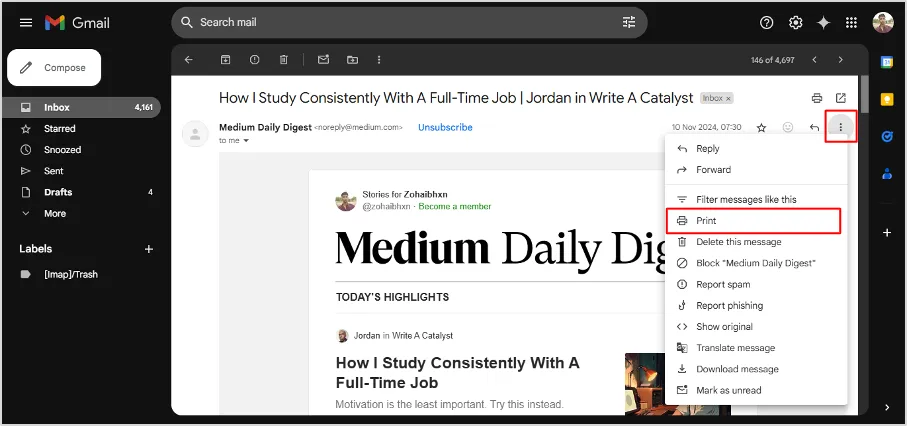
Simply sign in to your Gmail account and open the email you want to export.
In the top-right corner, find the three-vertical-dots icon and click on it. Select the ‘Print’ option from the drop-down menu.
A new window will open in no time. From here, choose ‘Save as PDF’ from the Destination.
NOTE: If you want to download the entire conversation, select ‘All’ from the Pages. You can even choose the layout for chats inside the PDF file.
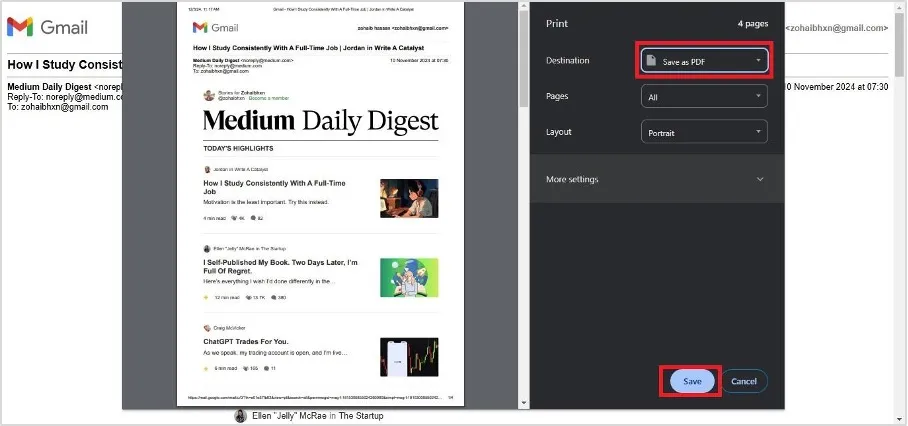
Once you set up the desired changes, click ‘Save’ to save your file.
Navigate to the File Explorer and go to the desired location on the system where you want to keep the file. Click ‘Save’ (for the second time) to complete the exportation process.
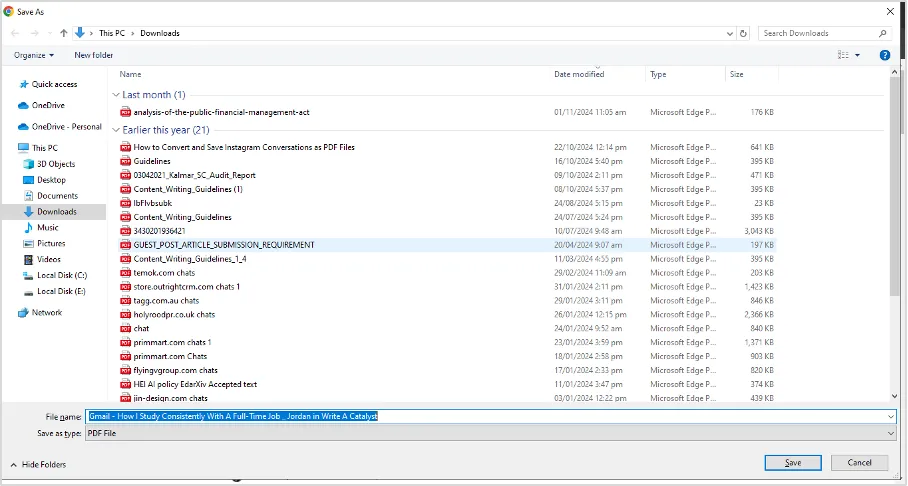
Hurrah! Your email is now saved as a PDF in the selected folder.
On Outlook
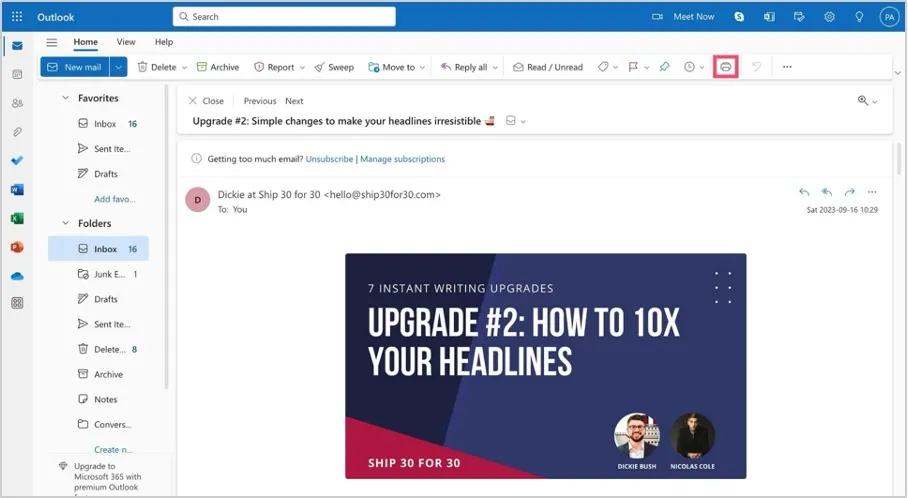
Open your Outlook account on your device and then the desired email.
Click on the ‘Print icon’ from the toolbar section.
NOTE: This method only applies if you have Windows 10 or a more recent version.
Select ‘Save as PDF’ from the Destination to ensure your file is saved as a PDF.
Enter ‘Save’ to proceed further.
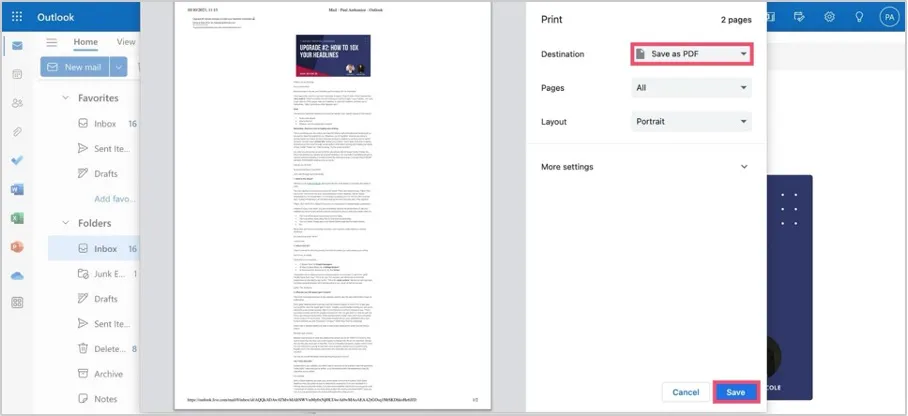
Choose the destination where you want to keep the PDF file.
Hit ‘Save’ again to end the process.
That’s it! You have successfully exported the desired email chat as a PDF and saved it to the selected location on your system.
On Apple Mail
Want to export an email as a PDF on your iPhone or Mac? Here is how you can do so:
Open Apple Mail on your Mac or iOS device. Then, open the desired email.
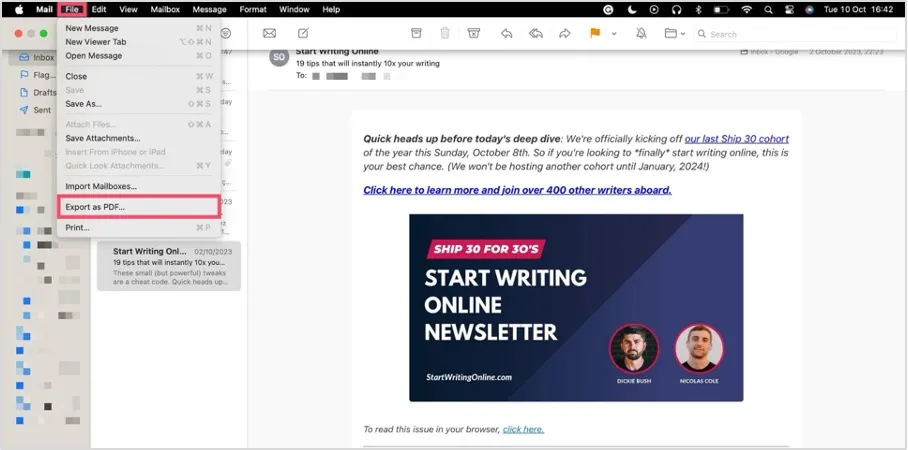
Click ‘File’ from the menu and select ‘Export as PDF’ from the dropdown menu.
Select the folder on the system to save the file and hit the ‘Save’ button.
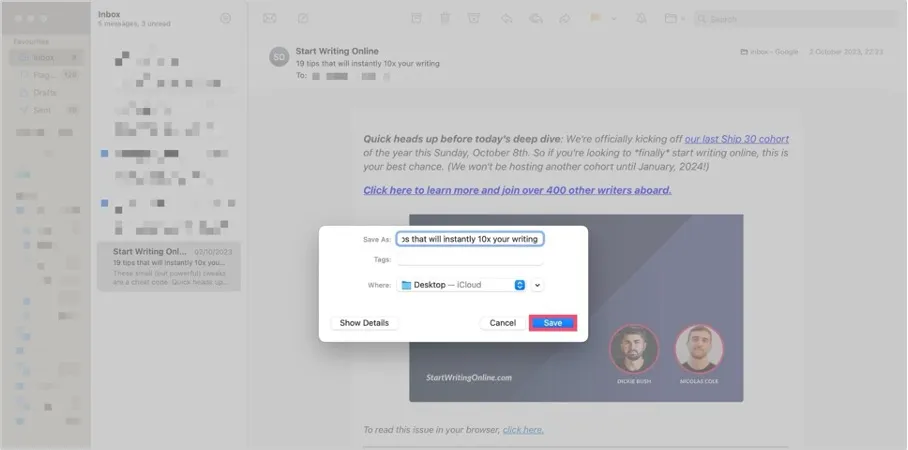
That’s it. The email is exported as a PDF file and is saved on your device.
On Yahoo Mail
Simply sign in to the Yahoo Mail account. Open the email you want to export as a PDF.
Press Ctrl+P (on Windows) or ⌘+P (on a Mac) to bring out the Print functionalities.
You can also do this by clicking the three horizontal dots icon from the toolbar. Select ‘Print’ from the drop-down menu that appears on the screen.
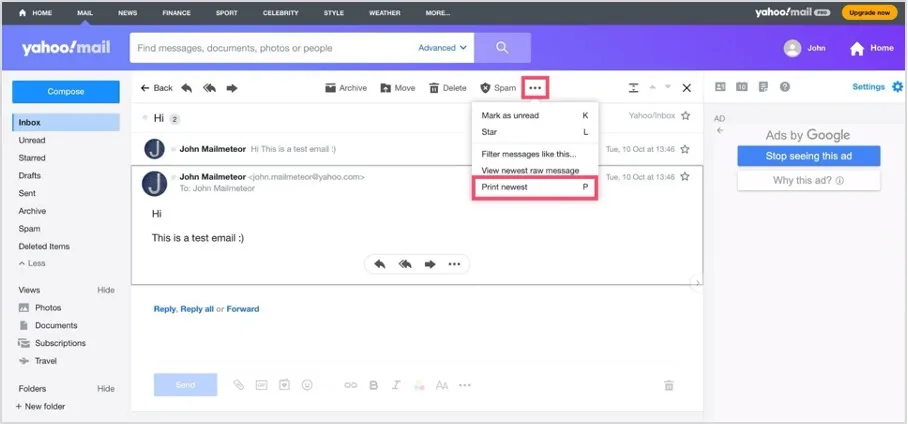
Make sure you select ‘Save as PDF’ from the Destination and press ‘Save’.
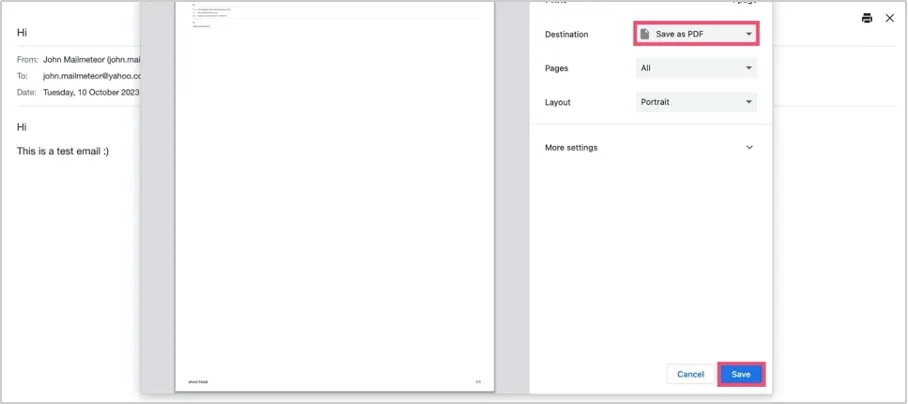
Select the system location where you want to save the PDF file. Once you have selected the location, click ‘Save’ to explore the chat.
2. Convert the PDF to an Editable Word Document
A PDF file is static, making direct editing cumbersome. Therefore, it is necessary to convert the PDF file into an editable Word document to activate editing.
The best way to modify a PDF file into an editable document is to use a PDF to Word Converter tool. For example, Imagetotext.info is one such tool. It lets users easily convert their PDFs into editable Word files in just a few seconds.
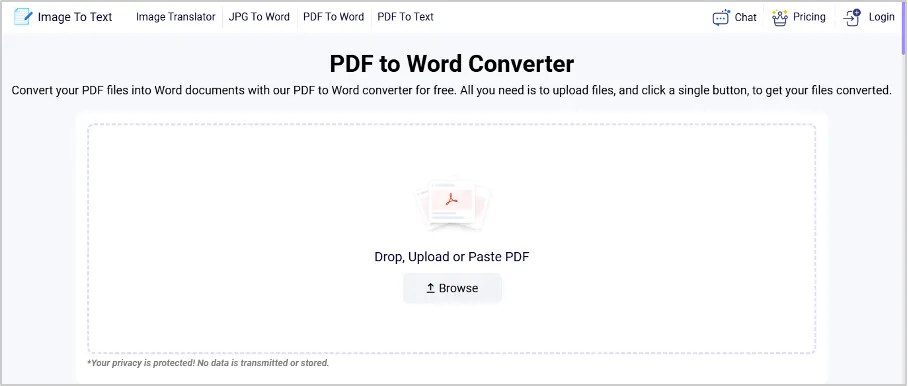
Simply upload the PDF file you just downloaded into the input box.
To do this, click on the ‘Browse’ button and upload the desired file from the system. Other ways to submit the PDF file are drag-drop and direct copy-paste.
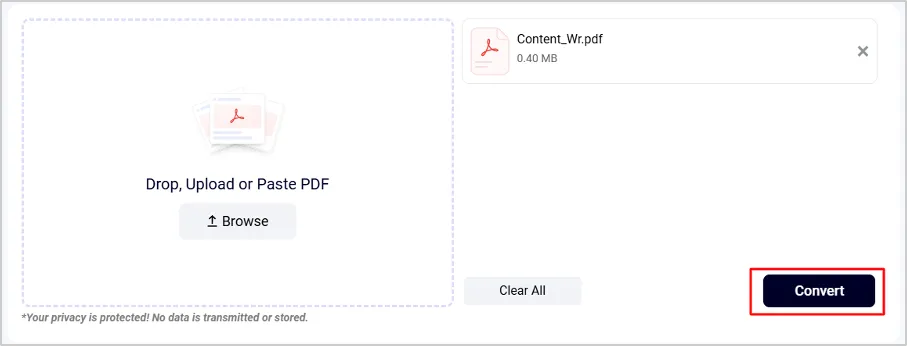
Once the file is submitted, click the ‘Convert’ button to convert the uploaded PDF file to an editable Word document. The tool takes 2 to 3 seconds to complete the process.

After the conversion, click on the ‘Download’ button to get the editable document file.
NOTE: If you have converted multiple PDF files in one go, click the ‘Download All’ button to get all the converted files in just one click.
3. Edit and Reorganize the Content
Once you create an editable document with your email chats, it is time to edit them for better document management. Here are some tips and tricks for this:
Organize and Structure
Review the email thread, identify the main topics and subtopics, and separate them. For example, pull out topics related to project updates, meeting schedules, action items, etc.
Once identified, group the related emails together to discuss the same topic sequentially. This ensures continuity and avoids repetition. For example, group the emails that are related to ‘budget discussion’ in one group.
Next, add descriptive headings and subheadings to each group. You can create headings like “Project Overview”, “Budget Discussion,” or “Action Items”.
However, make sure you maintain a clear hierarchy with proper formatting like this:
- H1: Main sections (e.g., “Budget Discussion”).
- H2: Subsections (e.g., “Proposed Allocations”).
- H3: Supporting details (e.g., “Feedback from Team Members”).
Remove Unnecessary Information
Along with structuring email content, don’t forget to remove unnecessary information.
For this, remove anything that is unrelated to the conversation. For example, if the document is about ‘project discussion’, remove the parts related to ‘lunch meeting confirmation’.
If similar information or points are repeated in multiple emails, summarize them once. So, instead of quoting several emails that agree on a meeting date, say, ‘All team members agreed to meet on March 15’.
In addition, trim excessively long emails and extract the core message. Identify the main purpose of the email and remove excessive pleasantries or lengthy introductions.
For example, instead of “Hope this email finds you well…” retain, “Regarding the client meeting on March 15…”.
4. Format for Better Readability
Once you structure the email and remove unnecessary information, next, format it.
First, apply a consistent font (e.g., Arial, Times New Roman) with an accessible size (11–12 pt). Keep a single or 1.5 line consistent spacing to maintain clarity.
Add line breaks between different sections for better visual distinction. Also, avoid cramming too much text into one section, as it can overwhelm readers.
Highlight important information via bold for headings, italics for emphasis, and underlining for key terms or deadlines. You can even color code to highlight critical updates in color (e.g., red for urgent items, green for approvals).
5. Save the Document in a Suitable Format
Have you made all the necessary changes?
If so, save the document back into PDF format for secure sharing and archiving.
If using Microsoft Word, click on File > Save As > This PC > your desired location. Select ‘PDF’ from the ‘Save as type’ when saving the file to bring it to PDF format.
For Google Docs, click on File > Download > select PDF document (.pdf). The file automatically downloads to the Download folder as a PDF.
Finally, have a descriptive PDF file name so you can find it easily in the future.
Conclusion
Important emails are supposed to be saved for the future, not deleted. However, before you save them, make sure you make them clear and organize them.
The process involved a few steps. First, export email conversations as PDFs. Then, convert them into editable Word documents so you can edit them later.
Structure the content with headings and remove irrelevant pieces of information. Don’t forget to format them for better readability.
Lastly, organize emails by topics and highlight key points to ensure clarity. Once the editing is complete, save the document back as a PDF for easy sharing and storage.