A hybrid cloud for a small business means keeping some systems on your own equipment and others in the cloud, with the two working together. Many small offices don’t need a full hybrid setup, because cloud services alone cover their work. It makes sense when you have software, files or rules that keep something on-site, while everything else benefits from the cloud. This guide helps you work out which group you’re in.

Key takeaways
- Start with what must stay local. If nothing does, cloud-only is usually simpler.
- Most hybrid setups are modest. A small server and Microsoft 365 is a hybrid setup, and a common one.
- You’ll run two environments. That means two sets of updates, security settings and bills.
- Connect them carefully. The link between local systems and the cloud needs the same attention as either side.
- Back up both. A hybrid setup doesn’t back itself up.
Does Your Small Business Need a Hybrid Cloud?
For background on the technology itself, see our guide to hybrid cloud solutions. For a small office, the useful question is which setup fits your work.
| Your situation | Usually the better fit | Why |
|---|---|---|
| Email, documents and browser-based apps cover your work | Cloud-only | There’s no local equipment to maintain |
| You rely on specialized software that must run locally | Hybrid | That software stays put while everything else moves |
| You work with very large files, such as CAD, video or imaging | Hybrid | Local storage is faster, with the cloud for sharing and backup |
| Your internet connection is slow or unreliable | Hybrid, or improve the connection first | Key work can continue during an outage |
| Rules or contracts require data to stay in a certain place | Hybrid, after checking the requirements | You control where sensitive data lives |
| You have a recent server with years of life left | Hybrid for now | You can move in stages rather than all at once |
If only the first row describes you, a hybrid setup would probably add work without adding much value. Our guide to cloud-based office solutions covers that route.
What Hybrid Cloud Looks Like in a Small Office
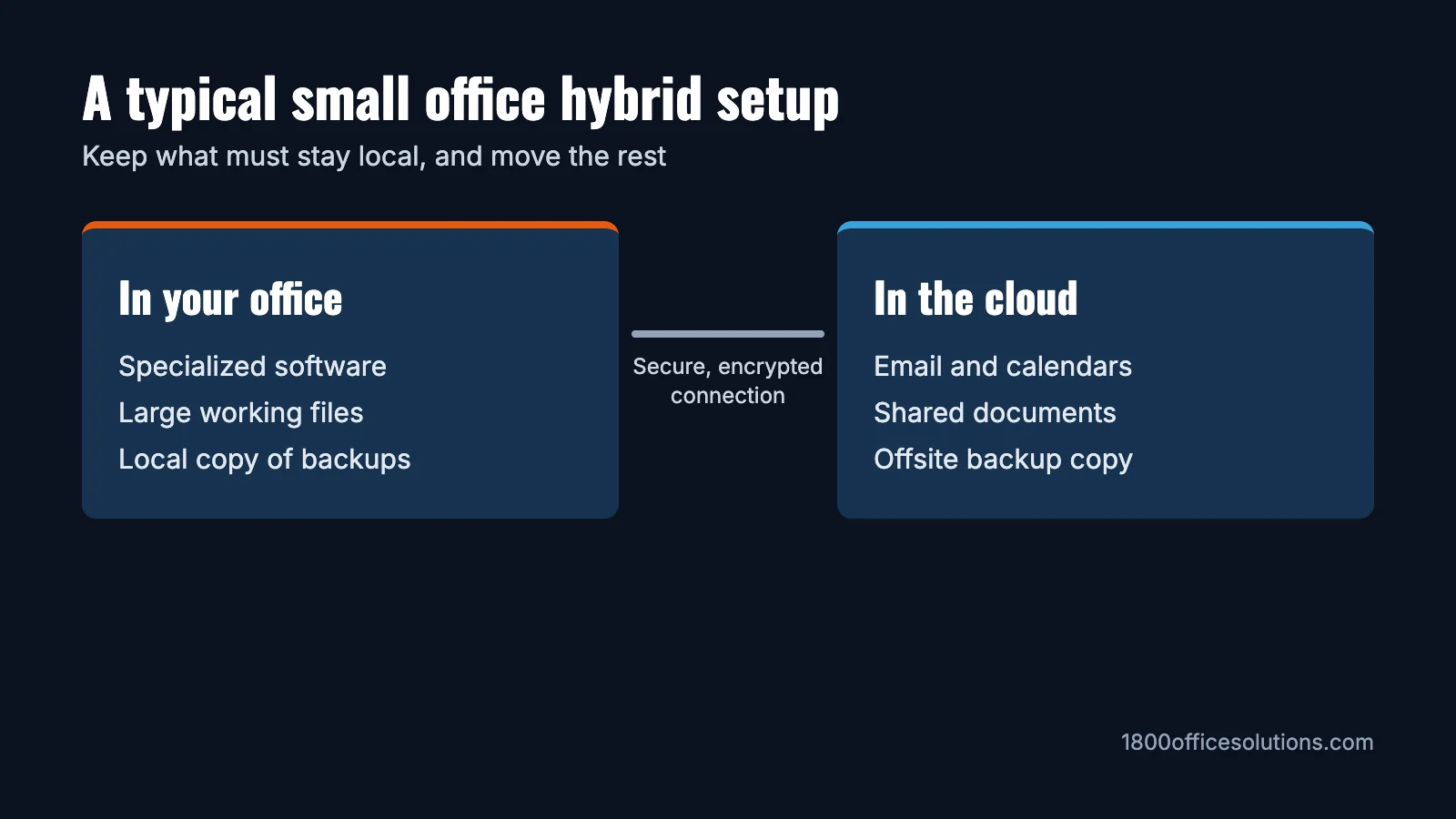
| Example | Stays on-site | Goes to the cloud |
|---|---|---|
| Accounting office | A desktop-based accounting program on a small server | Email, shared documents and backups |
| Design or engineering firm | Large working files on fast local storage | Finished files for clients, email and a backup copy |
| Medical or legal office | A specialized records system, if the vendor requires it | Email and documents, on a plan that meets your rules |
These are typical patterns rather than rules. Check with your software vendors, since many now offer hosted versions that could remove the need for a local server.
The Benefits
- A gradual move: you can shift one system at a time and replace old equipment when it makes sense.
- Performance where it counts: large files and local apps stay fast, and everyone can still reach email and shared documents from anywhere.
- More control: you choose where sensitive data lives.
- Stronger recovery: a cloud copy of local data gives you a backup away from the building.
- Room to grow: cloud services can scale up without new hardware.
The Tradeoffs to Plan For
| Tradeoff | What it means | How to handle it |
|---|---|---|
| Two environments | Local equipment and cloud services both need upkeep | Assign one owner for both |
| Two sets of costs | Hardware and support on one side, subscriptions on the other | Compare totals over several years |
| Data transfer | Moving data out of some cloud services can carry fees | Ask about these fees before you commit |
| Security gaps | The connection and shared accounts need protecting too | Use one sign-in system, multi-factor authentication and encrypted connections |
| Dependence on the link | Features that span both sides rely on your internet connection | Plan what still works offline |
What Does It Cost?
There’s no standard price, because every setup combines different parts. Build your own estimate from these lines, and compare it over the same period, such as three to five years:
- On-site: server hardware, software licenses, a battery backup, support and eventual replacement.
- Cloud: suite subscriptions per user, cloud storage and any hosted apps.
- Connecting them: internet capacity, a backup connection and secure access.
- Backup: one solution that covers both sides, or a separate one for each.
- Time: the staff or IT partner hours needed to run it all.
For cloud subscription prices, see our cloud office cost example.
5 Questions to Ask Before You Decide
- What exactly has to stay on-site, and why?
- Does the vendor of that software offer a hosted version?
- How old is our server, and when does its support end?
- What keeps working if the internet goes down?
- Who will look after both sides, and who is responsible for backups?
Want help working out what fits?
See how we help offices plan their technology.
Frequently Asked Questions
Does a small business need a hybrid cloud?
Many don’t. It’s worth considering if you have software, large files or rules that keep something on-site. Otherwise, cloud-only is usually simpler.
What is an example of a hybrid cloud for a small business?
A common example is an office that runs a specialized program on a local server, while email, documents and backups are in the cloud.
What is the difference between hybrid cloud and public cloud?
Public cloud means your systems run on a provider’s shared infrastructure. A hybrid cloud combines that with your own equipment or a private environment.
Is hybrid cloud more secure?
Not automatically. It gives you more control over where data lives, but there’s also more to protect, including the connection between the two sides. Good setup matters more than the model.
Is hybrid cloud cheaper?
It depends. It can make good use of equipment you already own, but you’ll pay for two environments. Compare total costs over several years for your own setup.
How do I back up a hybrid cloud?
Make sure both local data and cloud data are covered, keep a copy away from the original location and test restores. Our data backup guide explains the options.