
Quick answer: To set default printer in Windows 11, open Settings, go to Bluetooth & devices, then Printers & scanners. Turn off Let Windows manage my default printer, select the printer you want, and choose Set as default. Turning off that one setting is also what stops Windows from switching your default printer on its own.
Method 1: Set Default Printer in Windows 11 Settings
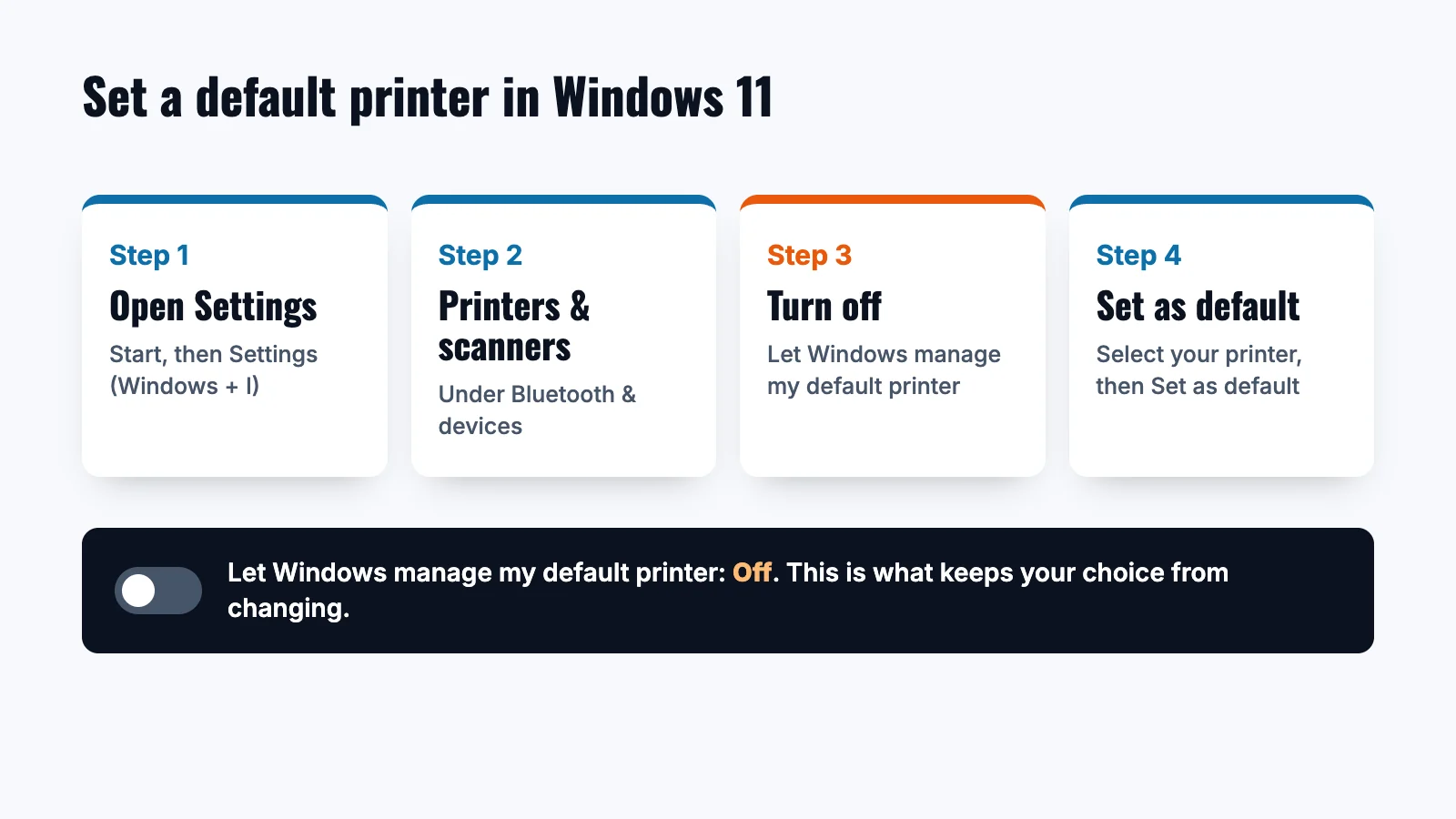
- Select Start, then Settings (or press Windows + I).
- Select Bluetooth & devices, then Printers & scanners.
- Under Printer preferences, turn off Let Windows manage my default printer.
- Select the printer you want from the list.
- Select Set as default. The printer now shows “Default” under its name.
If you don’t see the Set as default button, the “Let Windows manage” setting is still on. Turn it off and the button appears.
Method 2: Use Control Panel
- Open Control Panel (search for it from the Start menu).
- Select Hardware and Sound, then Devices and Printers.
- Right-click the printer and choose Set as default printer. A green check mark shows the default.
Method 3: Use the Command Line
This is handy for IT teams setting up several PCs. Open Command Prompt and run the following, using the printer’s exact name as it appears in Settings:
rundll32 printui.dll,PrintUIEntry /y /n "Office Copier"Why Does My Default Printer Keep Changing?
Microsoft explains this behavior in its own guide to setting a default printer in Windows.
When Let Windows manage my default printer is on, Windows makes the last printer you used at your current location the default. That’s helpful for laptops that move between offices, but confusing on a desk PC. Turn the setting off (Method 1, step 3) and your choice stays put.
If you set default printer in Windows 11 and it still switches, look at work policies. On a work computer, your company’s IT policy can also set the default printer. If it switches back after a restart, check with your IT team.
If Your Printer Isn’t in the List
- Add it first: in Printers & scanners, select Add device. For a network or wireless printer, see how to connect to a wireless printer.
- Restart the print service: search for Services, find Print Spooler, and select Restart.
- Install the right driver: office copiers and multifunction printers work best with the manufacturer’s driver, which unlocks features like stapling and two-sided printing.
Once your default printer is set, you can save paper with two-sided printing. See how to print double-sided in Word.
Set Default Printer in Windows 11 for a Shared Office Copier
If your team shares one office copier, a few habits keep printing smooth:
- Use one clear printer name. Rename the copier in Printers & scanners (for example, “Front Office Copier”) so everyone picks the right one.
- Remove old printers. Delete printers your office no longer uses so they don’t become the default by mistake.
- Set printing preferences once. In the printer’s Printing preferences, choose two-sided and black-and-white as the defaults to save toner and paper.
- Ask IT about policy. On managed computers, IT can set the default printer for everyone at once.
Can’t Set Default Printer in Windows 11? Troubleshooting
- Set as default is grayed out or missing: turn off Let Windows manage my default printer first.
- Printer shows Offline: check that the printer is on and connected to the same network, then select the printer and choose Open print queue to clear stuck jobs.
- Default resets after restart: a work policy or printer software may be changing it. Check with IT or the printer’s own app settings.
- Two copies of the same printer: remove the duplicate and keep the one that prints correctly.
Frequently Asked Questions
What is the fastest way to set default printer in Windows 11?
Open Settings, then Bluetooth & devices, then Printers & scanners. Turn off “Let Windows manage my default printer,” select your printer and choose Set as default.
How do I stop Windows 11 from changing my default printer?
Go to Settings, Bluetooth & devices, Printers & scanners, and turn off “Let Windows manage my default printer.”
Why is “Set as default” missing in Windows 11?
The button is hidden while “Let Windows manage my default printer” is on. Turn that setting off and the button appears.
Can I set a different default printer for each app?
Windows uses one default printer for all apps. Most apps let you pick another printer in the Print window, and some remember the last one you used.