
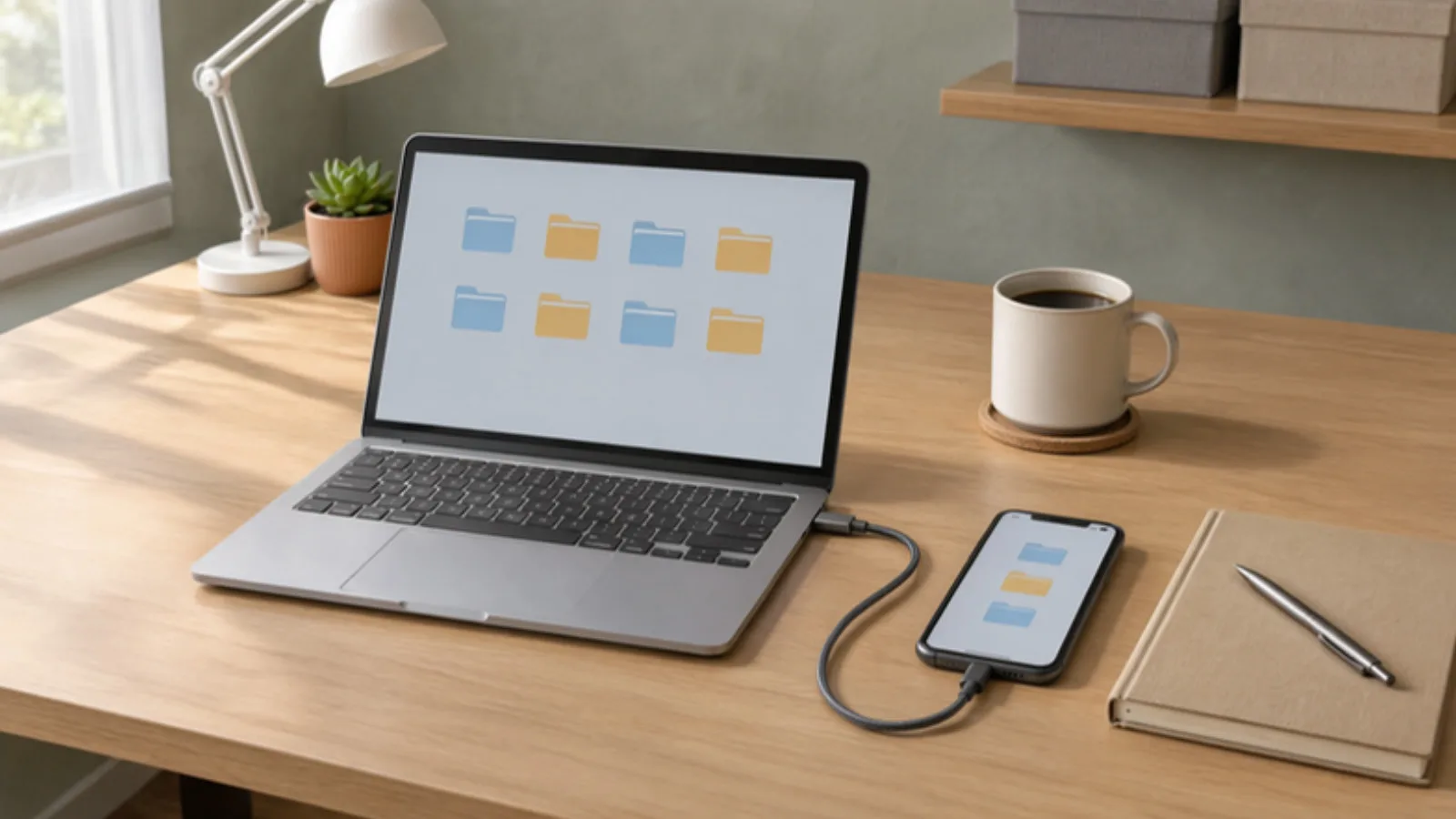
To transfer files from Android to a PC or Mac over USB, connect the phone with a data-capable cable, get past the lock screen, tap the “Charging this device via USB” notification and choose File Transfer. On Windows, the phone then opens in File Explorer like a drive. A Mac doesn’t read Android phones on its own, so you use Image Capture for photos or an MTP app such as OpenMTP for everything else, because Google no longer offers its old Android File Transfer app for Mac.
Key takeaways
- Android starts in charging-only mode. Choose File Transfer from the USB notification each time you plug in.
- Windows needs no extra software. The phone appears in File Explorer, and the Photos app can import pictures.
- Macs need a helper. Image Capture handles photos and videos; an MTP app handles documents, downloads and folders.
- Most failures are the cable, the lock screen or the USB mode. Check those three before anything else.
- Copying files by hand isn’t a backup plan. For business data, use a backup that runs on its own.
What You Need Before You Start
- A cable that carries data. Microsoft’s instructions call for a USB cable that supports file transfer, since some cables only charge. The cable that came with the phone is the safest choice.
- The right ports. Most current Android phones use USB-C. If your computer only has USB-A ports, use a USB-C to USB-A cable; many recent Macs need USB-C on both ends.
- Your screen lock. Microsoft notes that a PC can’t find a phone while it’s locked, so keep the screen on and signed in during the transfer.
- Space on the computer. Photo and video libraries are large. Check available space before you copy years of pictures.
Android USB Modes Explained
When you plug a phone into a computer, Android shows a notification that reads Charging this device via USB. Tapping it opens Use USB for, where you pick a mode. You can also reach these options under Settings > Connected devices > USB on many phones. Names vary slightly by brand. Motorola, for example, labels the default “No data transfer,” and some phones show “File Transfer / Android Auto.”
| Mode | What it does | When to use it |
|---|---|---|
| No data transfer / charging only | Charges the phone; the computer can’t see your files | Default and safest for charging from shared or public computers |
| File Transfer (MTP) | Lets the computer browse, copy and delete files on the phone | Documents, downloads, music, photos and any folder |
| PTP (photo transfer) | Shows the phone as a camera with photos and videos only | Photo apps such as Image Capture on Mac |
| USB tethering | Shares the phone’s mobile data with the computer | Getting a laptop online, not moving files |
| MIDI | Connects the phone to music software and instruments | Music production only |
Android’s developer documentation describes the same choices in technical terms: charging only, file transfer (MTP), picture transfer (PTP), sharing mobile internet (RNDIS) and MIDI.
How to Transfer Files From Android to a Windows PC
These steps follow Google’s own instructions and work on Windows 10 and Windows 11.
| Step | On the phone | On the PC |
|---|---|---|
| 1 | Turn on the screen and get past the lock screen | Sign in to Windows |
| 2 | Connect the USB cable | Wait a few seconds for Windows to detect the phone |
| 3 | Tap the Charging this device via USB notification | Nothing yet |
| 4 | Under Use USB for, choose File Transfer | A file transfer window opens, or open File Explorer and select the phone under This PC |
| 5 | Keep the screen on | Open Internal shared storage (the name varies) and browse folders such as DCIM, Download and Documents |
| 6 | Nothing | Drag files to a folder on your PC, or from your PC to the phone |
| 7 | Wait until copying finishes | Eject the phone in Windows, then unplug the cable |
Importing photos with the Windows Photos app
For photo libraries, the Photos app is often easier than dragging folders. Connect the phone in File Transfer mode, open Photos from the Start menu, select Import, choose your phone and follow the prompts. You can pick which items to bring over and where to save them. Microsoft notes you may need to switch the phone’s USB setting to transfer photos or media first.
How to Transfer Files From Android to a Mac
Macs don’t read Android’s file transfer protocol (MTP) by themselves. For years, Google offered a small Mac app called Android File Transfer for this. Google’s own Android File Transfer web address now leads to a page about Quick Share for Windows, with no Mac download, so plan on one of the options below instead.
| Option | What it moves | Cost | Best for |
|---|---|---|---|
| Image Capture (built into macOS) | Photos and videos only | Included with your Mac | Clearing a phone’s camera roll |
| OpenMTP | Any file or folder, both directions | Open source, no charge | Documents, downloads and full folders |
| Paid MTP apps (several exist) | Any file; some show the phone in Finder | Varies by app | People who move files every day |
| Cloud upload (Google Drive or Google Photos) | Any file | Depends on your storage plan | Small batches when you have a good connection |
Mac option 1: Image Capture for photos and videos
| Step | What to do |
|---|---|
| 1 | Connect the phone, get past the lock screen and choose PTP (or File Transfer) in Use USB for |
| 2 | Open Image Capture from Applications |
| 3 | Select the phone in the sidebar under Devices |
| 4 | Select the photos you want, or skip to step 6 to take them all |
| 5 | Use the Import To menu at the bottom to choose a folder or app |
| 6 | Click Download for your selection or Download All |
Apple’s guide says Image Capture works with cameras, iPhone, iPad, scanners and other devices, and suggests checking your device’s documentation for compatibility. In practice, phones that offer PTP mode usually appear, but only photos and videos show up.
Mac option 2: an MTP app for every other file
OpenMTP is an open-source Mac app built for Android and other MTP devices. Its site lists macOS 10.14 (Mojave) or later and describes it as working over USB only. The general steps:
| Step | What to do |
|---|---|
| 1 | Download the app from its official site and move it to Applications |
| 2 | Quit other apps that might grab the phone, such as Image Capture or Photos |
| 3 | Connect the phone and choose File Transfer in Use USB for |
| 4 | Open the app; your Mac’s files show on one side and the phone’s storage on the other |
| 5 | Drag files between the two panes, then quit the app before unplugging |
In a business setting, install third-party apps only from their official source, and check with whoever manages your computers before adding software to company Macs.
USB vs Wireless: Which Should You Use?
| USB cable | Quick Share for Windows | Cloud (Drive or Photos) | |
|---|---|---|---|
| How it connects | Directly by cable | Wirelessly, between your phone and PC | Through the internet, for upload and download |
| Works with Mac | Yes, with Image Capture or an MTP app | No, Windows only | Yes, in a browser |
| Large libraries | Best choice | Fine for batches | Slow on a weak connection |
| Setup | Cable plus a mode choice | Install the app on a 64-bit Windows 10 or later PC | Sign in on both devices |
A cable is still the most dependable way to move a large photo library, or anything you’d rather not send through the internet.
Troubleshooting: When the Computer Doesn’t See Your Phone
| What you see | Likely cause | What to try |
|---|---|---|
| Phone charges but never appears | Still in charging-only mode, or a charge-only cable | Pick File Transfer in the USB notification; try the phone’s original cable |
| No USB notification appears | Notification hidden or the port isn’t making contact | Open Settings > Connected devices > USB; reseat the cable firmly |
| Phone appears but folders look empty | Phone locked, or permission not yet granted | Get past the lock screen, then disconnect and reconnect |
| Works on one port, not another | Faulty port or hub | Plug straight into the computer, and test each port with another device |
| Mac shows nothing | macOS doesn’t read MTP on its own | Use Image Capture (photos) or an MTP app (other files) |
| Mac app can’t connect | Another app has claimed the phone | Quit Image Capture, Photos and other sync apps, then reconnect |
| Transfer stops partway | Screen timed out or the cable moved | Raise the screen timeout, copy smaller batches, and keep the cable still |
If nothing works, Google suggests restarting both devices, updating Android, trying a different cable and testing each USB port with another device.
What This Means for a Small Office
USB transfers are handy, but in a business they raise a few practical questions worth settling once:
- Where should work files land? Copy client documents and job photos to a shared, backed-up location, not a personal desktop folder that no one else can find.
- Is a cable your backup? Plugging in a phone every few weeks isn’t a backup. Our article on why mobile devices need backing up covers better options, and our backup and disaster recovery team can set up backups that run on their own.
- Are shared computers safe to plug into? Leave phones in charging-only mode on public or shared computers, and only choose File Transfer on machines you trust.
- Retiring a phone? Once your files are safely copied off, follow our steps to erase an old phone before selling or recycling it.
For help with company devices more broadly, see our IT services.
Want your phone and computer files backed up without the cable shuffle?
We can help you set up backups that protect your office files and devices automatically.
Frequently Asked Questions
How do you transfer files from an Android phone to a computer with a USB cable?
Connect the phone, get past the lock screen, tap the “Charging this device via USB” notification and choose File Transfer. On Windows, open the phone in File Explorer and drag the files across. On a Mac, use Image Capture for photos or an MTP app for other files.
Why won’t my PC recognize my Android phone?
Usually the phone is still in charging-only mode, the screen is locked or the cable only carries power. Choose File Transfer, keep the phone past the lock screen, and try the original cable and a different port.
Does Android File Transfer still work on Mac?
Google no longer offers it on its Android File Transfer page, which now covers Quick Share for Windows. Use Image Capture for photos and videos, or an MTP app such as OpenMTP for documents and folders.
Where are the USB settings on Android?
Tap the USB notification after plugging in, or go to Settings > Connected devices > USB on many phones. Look for “Use USB for” and pick File Transfer.
Can you transfer files from Android to PC without a USB cable?
Yes. Quick Share for Windows sends files wirelessly to 64-bit Windows 10 or later PCs, and Google Drive or Google Photos work on any computer with a browser.
What is the difference between MTP and PTP?
MTP (File Transfer) lets the computer reach any file and folder on the phone. PTP shows the phone as a camera, so only photos and videos appear.
Is USB transfer faster than cloud transfer?
Usually, especially for large photo and video libraries, because it doesn’t depend on your internet upload speed.
- Google Android Help, transfer files between your computer and Android device
- Android, Quick Share for Windows (former Android File Transfer address)
- Motorola Help, change USB preferences
- Android Developers, USB configuration options
- Microsoft Support, import photos and videos
- Apple Support, import images with Image Capture
- OpenMTP, official site