
Your team’s iPhones hold email, contacts, photos of documents, banking apps and logins to company systems. If one is lost or compromised, that is a business problem, not just a personal one.
iPhones have strong security built in. But no phone is impenetrable, and the best settings only help if they are turned on. This guide covers the settings that matter most for work phones, who should use Lockdown Mode, and what your IT team should enforce so you are not relying on every employee to get it right.
Menu names change between iOS versions, so use this as a map and check the current Settings app on your phone.
Start with the passcode
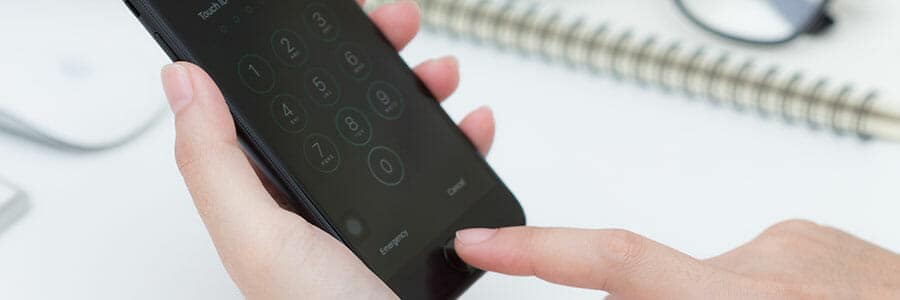
The passcode is the foundation. When you set one, the iPhone uses it to protect the data stored on the device. A weak passcode weakens everything else.
- Use at least six digits. Avoid birthdays, repeating numbers, and simple patterns like 123456.
- For people who handle sensitive data, a longer alphanumeric passcode is stronger. In the passcode options, look for a custom alphanumeric code.
- Turn on the option to erase the phone after ten failed attempts if your company is comfortable with it. Make sure important data is backed up first.
- Set Auto-Lock to a short time so the screen locks quickly when no one is using it.
Passcodes also matter because the iPhone asks for one after a restart, and sometimes after several failed Face ID attempts. That is a good safety net.
Set up Face ID the right way
Face ID is convenient, and convenience helps security. People are far more likely to use a lock they do not find annoying.
- Go to the Face ID and passcode section of Settings and set it up in good lighting.
- Keep the attention-aware features on, if your version offers them. They help prevent the phone from unlocking when you are not looking at it.
- Do not share your face scan or passcode with coworkers, even for a quick favor. Shared access makes it hard to know who did what.
Face ID is not a replacement for a good passcode. It is a quick way to use one.
Protect the phone if it is stolen
Many phone problems start with a lost or stolen device, not a clever hacker. A few settings reduce the damage.
- Turn on Find My iPhone. This lets you locate, lock, or erase the phone from another device.
- Check for Stolen Device Protection. Recent iOS versions offer extra protection that adds delays or extra checks for sensitive changes when the phone is away from familiar places. Look in the Face ID and passcode settings to see if it is available and turned on.
- Protect the Apple Account. Use a strong, unique password and turn on two-factor authentication. Whoever controls the Apple Account can control a lot about the phone.
- Keep backups working. If a phone has to be erased, you want to restore the data to a new device quickly.
Tell employees to report a lost phone right away, even if they think it is just in the car or at home. A quick report gives you more options.
Keep iOS and apps updated
Software updates fix security problems. Delaying them leaves known gaps open.
- Turn on automatic updates for iOS and for apps.
- Do not leave a pending update sitting for weeks.
- Retire phones that can no longer get security updates. Older iPhones eventually stop receiving new versions of iOS, and using them for work email or company apps adds risk.
If you are managing more than a handful of phones, ask your IT provider to track which devices are current and which are behind.
Use Lockdown Mode only where it fits
Lockdown Mode is an optional, extreme protection setting on recent iOS versions. It limits certain features, such as some message attachments, some web technologies, and some types of incoming connections, to shrink the ways a phone can be attacked.
Apple describes it as meant for a small number of people who may be targeted by highly advanced attacks. Most small businesses do not need it on every phone.
That said, it may be worth discussing for:
- Executives or board members with unusually sensitive information
- People who handle high-risk legal, financial, or investigative work
- Anyone who has reason to believe they are being specifically targeted
The tradeoff is that some things will not work as smoothly. Test it before rolling it out to anyone who depends on those features. You can find it in the Privacy and Security section of Settings, and it can be turned off if it gets in the way.
Review app permissions
Apps ask for access to your location, camera, microphone, photos, contacts and more. Not every request is necessary. Every extra permission is more data that could be misused if an app is poorly built or compromised.
Do a permission review:
- Open Settings and go to Privacy and Security.
- Look at categories like Location Services, Contacts, Photos, Camera, and Microphone.
- See which apps have access. Remove access that an app does not need to do its job.
- For location, choose “While Using the App” instead of “Always” when that is enough.
- Look at which apps are allowed to track activity across other companies’ apps and websites, and turn off what you do not need.
- Delete apps nobody uses.
Do this on a schedule, such as every few months. It takes only a few minutes per phone.
Watch for the tricks that skip settings
Good settings do not stop someone from being fooled. Many phone attacks start with a text, email, or call that tricks a person into acting.
Train employees to:
- Avoid tapping links in unexpected texts, even ones that look like delivery notices or bank alerts.
- Be careful with any message that creates urgency, like a boss asking for gift cards or a quick wire transfer.
- Never share verification codes sent by text or an app.
- Be careful on public Wi-Fi, and avoid sensitive work on networks they do not trust.
- Install apps only from the official App Store.
A short, regular reminder works better than a long annual lecture.
What IT should enforce on company phones
If employees use iPhones for work, do not rely on goodwill. Company-owned phones, and personal phones that access company data, should follow a written policy. IT can enforce much of it through mobile device management, often called MDM. This is software that lets a business apply settings and rules to phones.
Ask your IT team or provider whether the following are covered:
- Required passcode: a minimum length and complexity, with a short auto-lock time.
- Encryption and backups: confirm data protection is active and backups are set up the way you want.
- Update rules: require current iOS versions, or limit access if a phone falls behind.
- Remote lock and wipe: the ability to lock or erase a lost phone or one used by a former employee.
- App controls: a list of approved work apps, and limits on installing risky ones.
- Separation of work and personal data: especially important when employees use their own phones.
- Access rules: require multi-factor authentication for email and company apps, and cut off access quickly when someone leaves.
- Inventory: a list of every phone that touches company data, with the owner’s name.
We are not an IT security shop ourselves. We arrange managed IT services through our partner providers, which can include device management and policy setup. If you are not sure where your gaps are, a cybersecurity assessment is a good first step to see how your phones, networks, and accounts fit together.
A quick work iPhone checklist
Use this for each phone:
- Strong passcode set, with a short auto-lock time
- Face ID configured
- Find My iPhone on
- Apple Account protected with two-factor authentication
- Automatic updates on, and the phone still supports current iOS
- App permissions reviewed
- Unused apps deleted
- Backups working
- Employee knows how to report a lost phone
- IT can lock or wipe the device if needed
The bottom line
The iPhone gives you a strong starting point, but your business still has to configure it and manage it. Set good passcodes, keep software current, review app permissions, and decide who actually needs Lockdown Mode. Then put a simple policy in place so the settings stay on, even when people change roles or phones go missing.
Frequently asked questions
What is the most important iPhone security setting for a work phone?
A strong passcode is the most important setting. It protects the data on the phone and backs up Face ID. Use at least six digits, or a longer alphanumeric code for sensitive roles, and pair it with a short auto-lock time. Then keep iOS updated and turn on Find My iPhone.
Should every employee turn on Lockdown Mode?
Usually not. Lockdown Mode is an extreme, optional setting meant for people who may face highly advanced, targeted attacks. It limits some features, which can disrupt normal work. Consider it for high-risk roles, test it first, and rely on strong basics like updates, passcodes, and training for everyone else.
Can a business control employees' iPhone settings?
Yes, usually through mobile device management, or MDM. IT can require passcodes, enforce updates, limit apps, and lock or erase lost phones. Personal phones are trickier, so write a clear policy and ask your IT provider how to separate work data from personal data.
How often should we review iPhone app permissions?
A review every few months is a good habit, and also after installing new apps or when someone changes roles. Check location, camera, microphone, photos, and contacts access. Remove permissions an app does not need and delete apps nobody uses. It only takes a few minutes per phone.