
Cloud-based office solutions are online services that replace the software and servers a small office used to run itself. Most offices need five things: email and calendars, documents and file storage, team chat and meetings, a phone system, and backup. In our 10-person example, that comes to about $43 per person each month before taxes and fees, and your office copier can feed paper straight into it.

Key takeaways
- Start with one suite. Microsoft 365 or Google Workspace covers email, files, documents and meetings under one bill.
- Budget per person. Listed suite prices run $7 to $22 per user each month, and phones and backup are separate.
- Move in order. Email first, then files, then phones and everything else.
- Bring paper along. Setting up your copier to scan into the cloud is often overlooked and easy to get wrong.
- Keep your own backup. A separate copy of your cloud data protects you from deletions and account problems.
The 5 Cloud Services Most Offices Need
| What you need | Common choices | Rough monthly cost per person |
|---|---|---|
| Email and calendar | Microsoft 365, Google Workspace | Included in the suite, $7 to $22 |
| Documents and file storage | OneDrive and SharePoint, Google Drive | Included in the suite |
| Chat and video meetings | Microsoft Teams, Google Meet and Chat | Included in most suite plans |
| Phone system | A hosted VoIP service | $20 to $35 per seat |
| Backup | A cloud-to-cloud backup service | Varies, about $4 is our planning assumption |
Suite prices are the US list prices shown on Microsoft’s and Google’s pricing pages in November 2026, before tax. Microsoft’s prices are for annual billing, and its monthly billing costs more. Prices change, so confirm before you buy.
Microsoft 365 or Google Workspace?
At list price, the tiers cost about the same, so choose based on how your office works.
| Listed price per user, per month | Microsoft 365 | Google Workspace |
|---|---|---|
| $7 | Business Basic: web and mobile apps | Business Starter: 30 GB of pooled storage per user |
| $14 | Business Standard: adds the desktop apps | Business Standard: 2 TB of pooled storage per user |
| $22 | Business Premium: adds advanced security and device management | Business Plus: 5 TB of pooled storage per user, plus more security controls |
- Microsoft 365 tends to fit offices that rely on desktop Excel and Word, trade complex files with clients, or already use Windows-based business software.
- Google Workspace tends to fit offices that work mostly in a browser and want simple sharing and real-time editing.
What to Set Up by Office Size
| Office size | A sensible setup | Worth adding |
|---|---|---|
| Up to 5 people | One suite at the entry or middle tier, softphone apps and a cloud backup | A shared password manager |
| About 10 people | The middle tier, shared team folders with set permissions, and a mix of desk phones and apps | Scan-to-cloud on the copier and a written offboarding checklist |
| About 25 people | The security-focused tier, central device management and role-based folders | A named owner or IT partner for account and security settings |
Not sure about desk phones versus apps? Read what a softphone is and what it costs.
What It Adds Up To
Here’s a monthly budget for a 10-person office using a middle-tier suite, $25 phone seats and backup at $4 per person:
| Item | Per person | 10 people |
|---|---|---|
| Suite at the $14 tier | $14 | $140 |
| Phone system | $25 | $250 |
| Backup (our assumption) | $4 | $40 |
| Total before taxes and fees | $43 | $430 |
Budget your own office
Change any number. Results update as you type.
An estimate before taxes and fees, not a quote. It doesn’t include computers, internet service or specialized software.
Scanning From Your Copier to the Cloud
Moving to the cloud doesn’t end paper. Signed forms, invoices and contracts still arrive, and your copier is how they get in. Most cloud guides we reviewed skip this step, but it’s where a lot of daily frustration shows up.
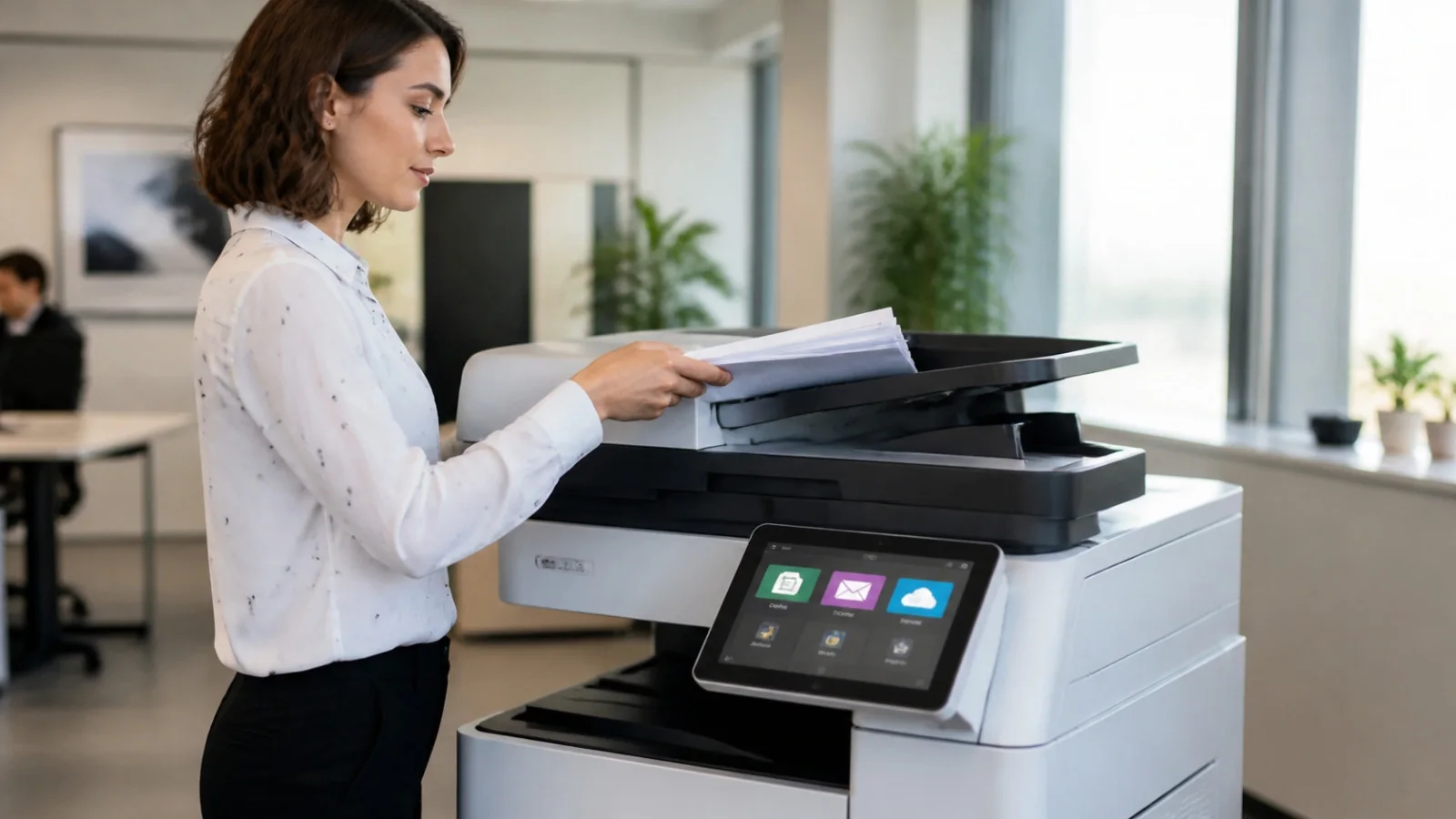
There are three common ways to set it up:
| Method | How it works | Keep in mind |
|---|---|---|
| Scan to email | The copier emails the scan to you, and you save it to the cloud | Simple to use, but it adds a step and large files can be a problem. Older copiers may need updates to send through modern email services. |
| Scan to a synced folder | The copier saves to a network folder that syncs to the cloud from a computer | Works with many older machines, but that computer has to stay on |
| Direct cloud connector | An app on the copier sends scans straight to OneDrive, SharePoint or Google Drive | The cleanest option. Availability depends on the model, so ask before you buy or lease. |
Three more habits pay off:
- Scan to the right folder. Create destinations by department so payroll scans don’t land in a shared folder.
- Turn on searchable PDF (OCR). It lets you find a scanned document by the words inside it.
- Remember the copier stores data too. The FTC’s copier guide explains how to protect its hard drive, and our print security guide covers device settings.
What to Keep Off the Cloud, at Least for Now
The cloud fits most office work, but some things are worth a closer look first:
- Very large files on a slow connection. CAD, video and large image files may work better locally with a cloud copy for backup.
- Specialized software. Some industry and legacy programs need a local server, or a hosted version from the vendor. Ask them before you plan a move.
- Offices with unreliable internet. Improve the connection first, or add a backup line, since everything will depend on it.
- Data with special rules. Healthcare, finance and legal offices should confirm the plan meets their requirements, including any agreement the provider needs to sign.
The Order to Move Things In
- Get ready. List your users, files, software and shared mailboxes, and clear out what you no longer need.
- Move email and calendars. Everything else connects to these accounts, so they come first. Turn on multi-factor authentication now.
- Move files. Set up team folders and permissions before you copy anything, then move a department at a time.
- Connect the copier. Update its scan destinations and test them with each team.
- Move phones. Keep your old service until your numbers have moved and you’ve tested them.
- Turn on backup. Confirm that it’s covering email and files, then do a test restore.
Security and Backup
A cloud provider keeps its service running, but you still manage who has access and what happens to your data. Turn on multi-factor authentication, remove accounts when people leave, and review sharing settings from time to time. Our guide to how data breaches happen shows what to focus on.
Also keep a separate backup. Version history and recycle bins are useful, but they have limits on how long they keep things. Our data backup guide explains your options, including for Microsoft 365 and Google Workspace.
Want help planning your move?
See how we help offices with their technology, from accounts to phones and copiers.
Frequently Asked Questions
What are cloud-based office solutions?
They’re online services for everyday office work, such as email, documents, file storage, meetings and phones. You sign in through a browser or app and pay a monthly fee, and the provider runs the systems.
What cloud tools does a small business need?
Most need an office suite for email, files and meetings, a phone system and a backup service. Add other tools, such as accounting or a CRM, as your work calls for them.
How much does cloud software cost per employee?
Suites list at $7 to $22 per user each month. With phones and backup, a 10-person office in our example pays about $43 per person before taxes and fees.
Can I scan from my copier to the cloud?
Usually, yes. Depending on the model, you can scan to email, to a folder that syncs to the cloud, or directly to services such as OneDrive or Google Drive.
Do I still need a server?
Many small offices don’t, once email and files are in the cloud. You may still need one for specialized software or very large local files.
Do I need to back up Microsoft 365 or Google Workspace?
We recommend it. Built-in version history and recycle bins have limits, and a separate backup gives you a copy you control.
Is the cloud safe for sensitive documents?
It can be, when it’s set up well. Use multi-factor authentication and limited sharing, and confirm that the plan meets any rules for your industry.