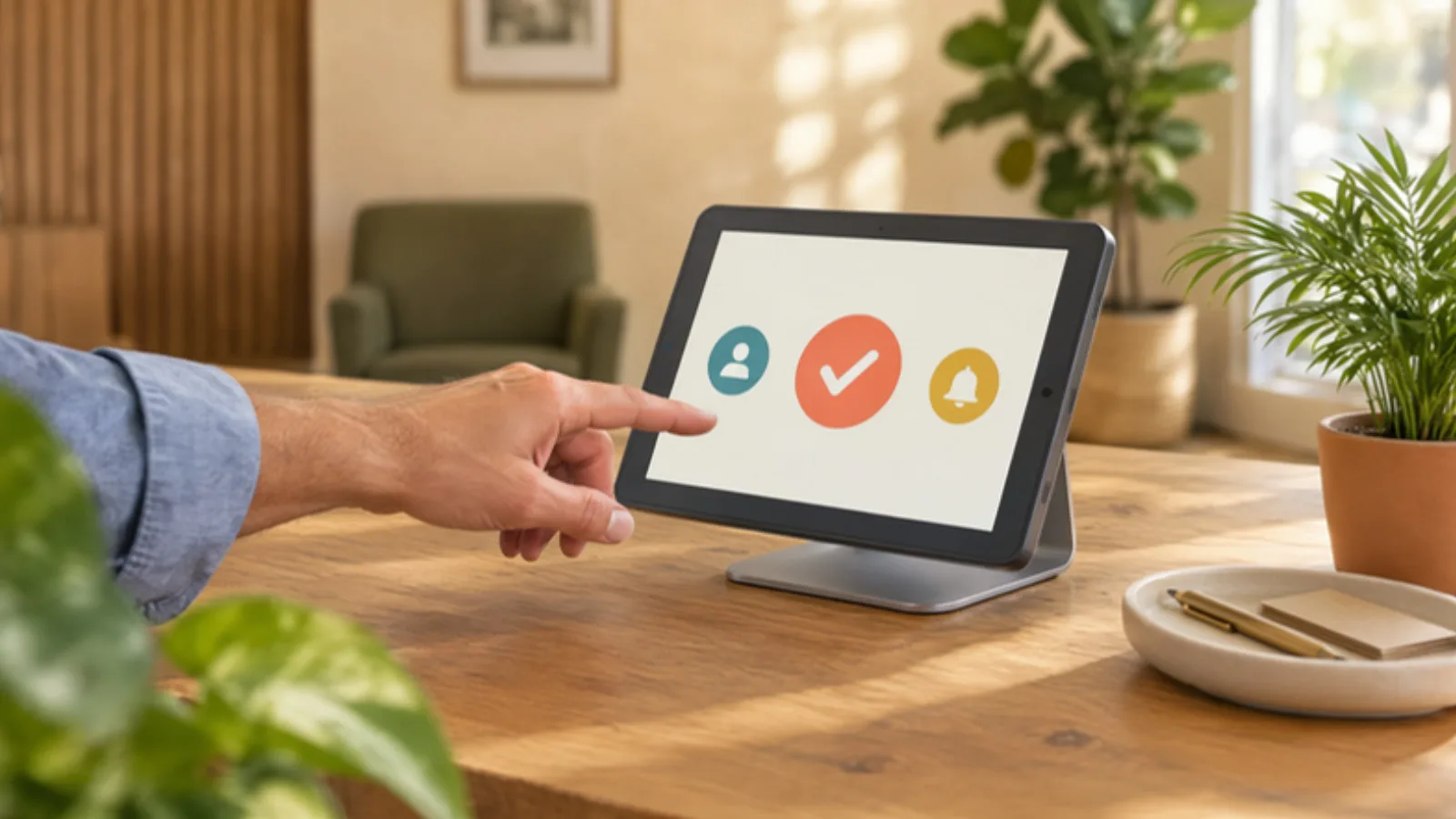
The best ways to repurpose an old Android tablet are jobs that need one app on one screen: a lobby check-in kiosk, a digital sign, a conference-room booking panel, a scan or print-release station beside your copier, a desk dashboard or a simple camera. For most of these, you reset the tablet, give it its own account, pin a single app and keep it on power. The main thing to check first is whether it still gets security updates, because that decides how much you can trust it on your office network.
Key takeaways
- Check the security update date first. It tells you whether the tablet belongs on your main network, a guest network or neither.
- Reset it and give it a dedicated account. Never leave a former employee’s email, photos or saved passwords on a shared screen.
- Use app pinning for one tablet. For several tablets, managed “dedicated device” mode gives you real lockdown and remote control.
- Single-purpose jobs suit older hardware. A web page, a calendar or a sign needs far less power than daily email and video.
- Look after the battery. A tablet on power all day benefits from a charge limit and a cool, open spot.
Step 1: Check Whether the Tablet Is Still Up to the Job
Before you plan a new role, spend two minutes on the tablet’s health. Google’s help page shows where to look: open Settings, then About tablet, then Android version. That screen lists the Android version and the date of the last Android security update. To look for newer updates, go to Settings > System > Software updates. Menu names vary a little by brand.
Google notes that older devices can’t always run newer Android versions, and update schedules depend on the manufacturer and carrier. Use what you find to decide where the tablet fits:
| What you see | What it means | Good roles |
|---|---|---|
| Security update within the last few months | Still supported by the maker | Any role below, including ones that sign in to business apps |
| Updates stopped, but apps still install and run | Works, but no new security fixes | Signage, clocks, menus and other display-only jobs on a guest or separate network |
| Apps won’t install, or the battery is swollen | Past its useful life | Recycle it (see the last section) |
Also check the basics: does the touchscreen respond across the whole surface, does it hold Wi-Fi, and does the battery look flat when the tablet lies on a table? A tablet that rocks or has a lifted screen may have a swelling battery, and it should be retired, not mounted on a wall.
Step 2: Reset It and Set It Up for a Single Job
A tablet that sat in a drawer often still holds someone’s email, photos and saved logins. Start clean. Our guide on erasing an old phone or tablet walks through backing up and doing a factory reset properly, including the account steps that prevent lockouts.
After the reset, set it up with purpose:
- Use a dedicated account. Create a shared business account for the device instead of anyone’s personal one. Turn off sync for contacts, photos and messages.
- Remove what you won’t use. Disable or uninstall games, social apps and anything unrelated to the new job.
- Set a screen lock PIN. Even a kiosk needs a PIN so staff can unpin it and visitors can’t.
- Join the right network. For display-only roles, a guest or separate Wi-Fi network keeps the tablet away from your file shares, copiers and phones.
- Name it. Give it a clear device name (for example “Lobby-Checkin”) so it’s easy to spot on your network and in any management console.
10 Ways to Reuse an Old Android Tablet at Work and at Home
Most lists online focus on home ideas such as photo frames and smart-home remotes. Those are fine, but an office gets more out of a spare tablet. Here’s how the options compare:
| Use | Where it lives | Setup effort | Needs current updates? |
|---|---|---|---|
| Visitor check-in kiosk | Reception desk or lobby wall | Medium | Yes, if it collects visitor details |
| Digital signage | Lobby, waiting room, break room | Low | Helpful, not essential on a separate network |
| Conference-room panel | Outside a meeting room door | Medium | Yes, it signs in to your calendar |
| Scan and print-release station | Beside the copier | Medium | Yes, it touches print and scan systems |
| Customer feedback station | Checkout counter or exit | Low | Helpful |
| Wall calendar and team dashboard | Office or shop floor | Low | Yes, if it shows business data |
| Training and manuals reader | Warehouse, kitchen, workshop | Low | Helpful |
| Second screen for a laptop | Any desk | Low | Helpful |
| Simple indoor camera | Stock room or entrance | Low | Yes, video leaves the building |
| Family hub, recipes or e-reader | Home | Low | Helpful |
The four business roles below get the most use in a small office, so we cover them in more detail.
Lobby Check-In Kiosk
A tablet on a stand at reception lets visitors sign in, read your Wi-Fi or safety notice and notify the person they’re meeting. Many visitor-management and form tools run in a web browser or have an Android app, so an older tablet can handle the job.
To keep visitors inside that one screen, turn on app pinning. Google’s steps are:
- Open Settings, go to Security (sometimes “Security & location”), then Advanced, and turn on App pinning.
- Open the check-in app or web page.
- Open Overview (swipe up from the bottom and hold, or tap the Overview button).
- Tap the app’s icon at the top of its preview and tap Pin.
To unpin with gesture navigation, swipe up and hold. With 3-button navigation, press and hold Back and Overview together. When the PIN option is on, the tablet asks for the screen lock before it unpins, so a curious visitor can’t wander into settings.
Digital Signage and Waiting-Room Displays
A tablet makes a tidy small sign: today’s specials, a welcome message, a rotating slide deck of services, or a safety notice in a break room. Use a slideshow app, a shared photo album or a web page you control, and pin it.
Signs need the screen to stay on. Android’s developer options include a Stay awake setting that keeps the screen on while the device is plugged in. To reveal developer options, Android’s documentation says to find Build number (on many tablets under Settings > About tablet) and tap it seven times until you see a message that you’re now a developer. Then look for Stay awake in Developer options. Leave everything else in that menu alone.
Turn the brightness down to what the room needs; a dimmer screen runs cooler.
Conference-Room Booking Panel
Mounted outside a meeting room, a tablet can show whether the room is open and what’s booked next. The simplest version is a web calendar view of the room’s shared calendar, signed in with a room or service account rather than a person’s account, and pinned on screen.
Dedicated room-booking apps add tap-to-book and check-in. Some meeting platforms only support specific room hardware for their full room features, so check your provider’s requirements before you buy brackets. For a small office that just wants to stop people walking into a busy room, the calendar view is usually enough.
Scan and Print-Release Station Beside the Copier
This is the use most guides miss, and it fits busy offices well. A tablet on a small stand next to your copier can:
- Show the release queue. If your print management software offers a web release page, staff can find and release their own jobs on the tablet, so confidential pages don’t sit in the tray. Our guide to secure BYOD printing explains how release printing works.
- Display scanning instructions. A pinned page with your scan shortcuts and destinations cuts down on “where did my scan go?” questions. See our walkthrough on how to scan to email for the setup side.
Because this tablet touches print and scan systems, keep it on a supported Android version and sign in with a limited account. If you’d like help setting up release printing or tidying up your print fleet, our managed print services cover that.
App Pinning vs Managed Dedicated-Device Mode
App pinning is built in and fine for one tablet you can see from your desk. If you run several tablets, or they sit in public spaces, Android’s managed dedicated device setup is the stronger choice. Android’s developer documentation lists kiosks, digital signage and hospitality check-in as typical uses. These devices are fully managed by a device management tool and can be locked to an allowlist of apps with lock task mode.
| App pinning | Managed dedicated device | |
|---|---|---|
| Setup | A few taps in Settings | Factory reset, then enroll in a management tool (often with a QR code) |
| Lockdown | One app; a PIN ends pinning | An allowlist of apps; no access to settings for users |
| Remote control | None | Push apps, change settings and wipe remotely |
| Updates | Handled on the tablet | Can be scheduled, with freeze periods for busy times |
| Best for | One tablet in a staffed area | Several tablets, or any unattended public screen |
Keeping a Repurposed Tablet Running Well
- Use a charge limit if your tablet has one. Samsung, for example, documents a Battery protection option under Settings > Battery that limits charging to protect battery health. Other brands offer similar settings under different names.
- Give it air. Avoid sealed cases and sunny windows. Heat is hard on batteries that charge all day.
- Use a proper mount and cable route. A locking stand or wall bracket keeps a lobby tablet in place, and a hidden cable looks better and gets snagged less.
- Review it every few months. Check the security update date again and remove apps that crept back in.
When to Recycle the Tablet Instead
Not every tablet deserves a second job. Recycle it if the battery is swollen, the screen is cracked where people touch it, or the apps you need no longer install. Before it goes, erase it fully and sign it out of every account, the same way you would a phone. A local electronics recycler can handle the battery safely.
If you manage several devices across an office, our team can help with the bigger picture through our IT services, from device setup to network separation.
Want a hand turning spare devices into useful tools?
Tell us what you have and what you’d like it to do. We’ll help you set it up sensibly for your office.
Frequently Asked Questions
What can you do with an old Android tablet that no longer updates?
Use it for display-only jobs such as a sign, a clock, a menu or a slideshow, and keep it on a guest or separate Wi-Fi network. Avoid signing it in to email, banking or business systems.
Can an old Android tablet be used as a kiosk?
Yes. For one tablet, turn on app pinning and pin your check-in app or web page. For several unattended tablets, a management tool that supports Android’s dedicated-device mode gives you stronger lockdown and remote control.
How do you keep an Android tablet screen on all the time?
Turn on Developer options by tapping Build number seven times, then switch on Stay awake, which keeps the screen on while the tablet is plugged in. Some signage apps also keep the screen on by themselves.
Is it safe to leave a tablet plugged in all the time?
It’s common for kiosks and signs. Use a battery charge limit if your tablet offers one, keep it in a cool, ventilated spot, and retire it if the battery starts to swell.
Can an old tablet be used as a security camera?
Yes. Camera apps can stream video from the tablet to your phone. Use a tablet that still gets security updates, protect the app account with a strong password, and tell staff where cameras are.
Should you factory reset a tablet before reusing it?
Yes. A reset removes the previous user’s accounts, apps and files, and lets you set the tablet up with a dedicated account for its new job.
Can an old Android tablet work as a second monitor?
Yes, with a screen-extension app on both the tablet and your computer. Performance depends on the app and your connection, so test it before relying on it daily.