
Quick answer: Wi-Fi Direct is a way for a phone, tablet or laptop to connect straight to a printer over Wi-Fi, without going through a router or your office network. The printer creates its own small, password-protected network, usually named something like “DIRECT-xx-” followed by the printer model. You join that network and print.
It’s a handy option for guests, a quick setup, or an office corner without a reliable network connection.
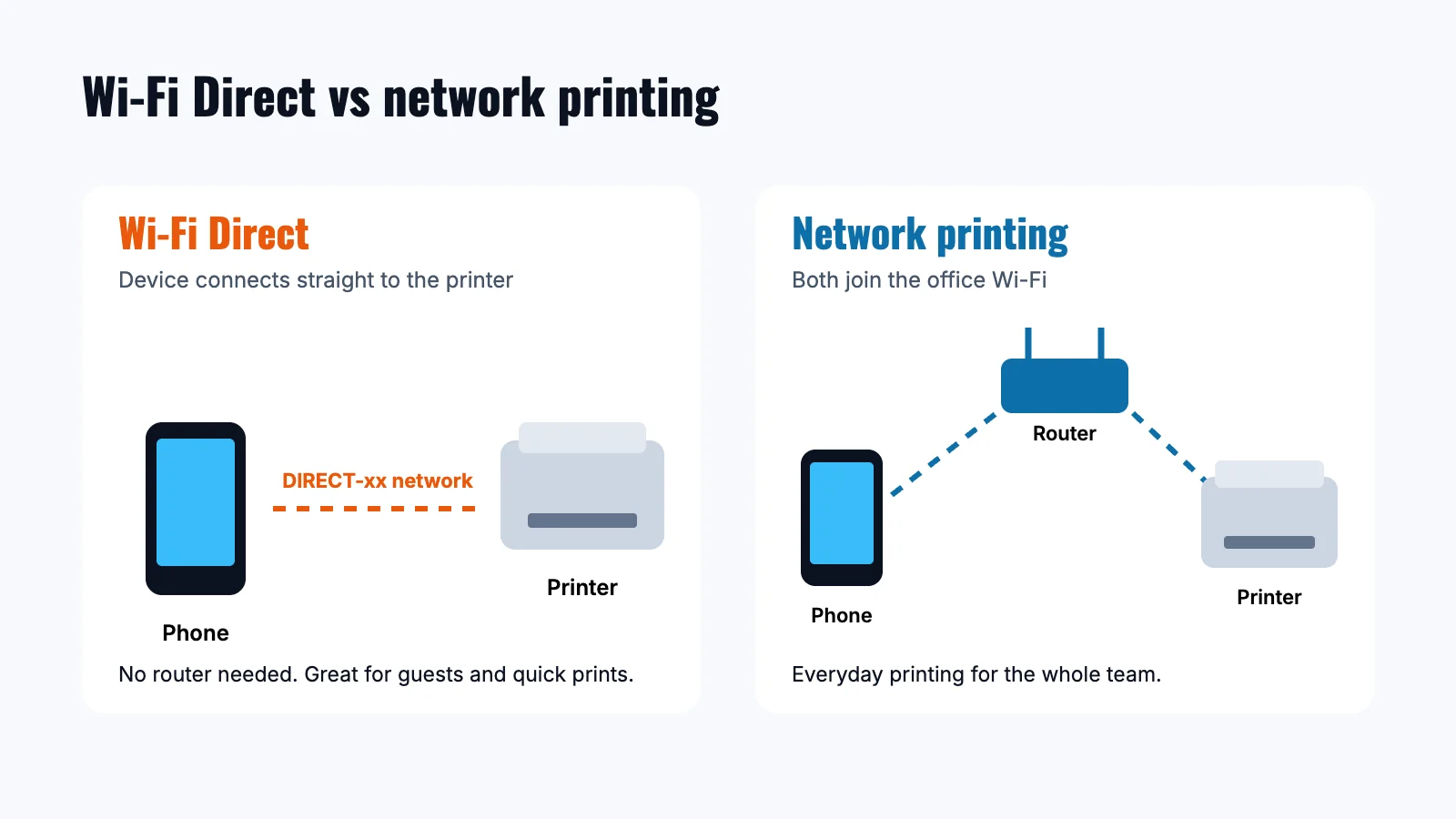
Wi-Fi Direct vs Regular Wireless Printing
| Wi-Fi Direct | Network (router) printing | |
|---|---|---|
| How it connects | Device connects straight to the printer | Device and printer both join the office Wi-Fi |
| Router needed | No | Yes |
| Internet on your device | Phones may drop internet while joined to the printer | Stays connected as usual |
| Best for | Guests, quick one-off prints, setup | Everyday printing for the whole team |
| Management | Per printer | Central, with print queues and settings |
How to Turn On Wi-Fi Direct on Your Printer
Most current office printers support it. The Wi-Fi Alliance maintains the standard and certifies devices that use it.
- On the printer’s control panel, open Network, Wireless or Wi-Fi settings.
- Find Wi-Fi Direct (some brands call it Wireless Direct or Direct Connect) and turn it on.
- Note the network name and password. Most printers can print a network configuration page that shows both.
Menu names vary by brand, so check your printer’s user guide if you don’t see the option.
How to Print Over Wi-Fi Direct
From a Windows 11 PC
- Open Settings, then Bluetooth & devices, then Printers & scanners.
- Select Add device.
- Select Show Wi-Fi Direct printers, choose your printer and follow the prompts.
From an iPhone or iPad
- Open Settings, then Wi-Fi, and join the printer’s DIRECT network with its password.
- Open the document or photo, tap Share, then Print, and choose the printer. This works with printers that support AirPrint.
From an Android phone
- Join the printer’s DIRECT network from your Wi-Fi settings, or use the direct-connect option in your Wi-Fi menu.
- Open the file, tap Share or the menu, then Print. Your printer brand’s app can also handle the connection.
Tips for Using Wi-Fi Direct in an Office
- Change the default password on the printer’s direct network and share it only with people who need it.
- Turn it off when you don’t use it. If everyone prints over the office network, you can switch it off in the printer settings.
- Use it for visitors. Guests can print without joining your office network.
- Reconnect afterward. On a phone, switch back to your regular Wi-Fi once the job is done.
For everyday printing on the office network, see our step-by-step guide to connecting to a wireless printer and our roundup of wireless printing solutions.
Wi-Fi Direct vs AirPrint vs Mopria
These names often show up together, but they do different jobs:
- Wi-Fi Direct is the connection: a direct wireless link between your device and the printer.
- AirPrint is Apple’s built-in printing system for iPhone, iPad and Mac.
- Mopria is a printing standard built into many Android phones and Windows PCs.
In practice, you can join a printer’s DIRECT network and then print using AirPrint or Mopria, with no extra app.
Wi-Fi Direct Troubleshooting Tips
- Can’t see the DIRECT network? Check that the feature is turned on in the printer menu, and move closer to the printer.
- Wrong password? Print the printer’s network configuration page to see the current direct-connection password.
- Connected but can’t print? Make sure your phone is still joined to the DIRECT network, not your office Wi-Fi, when you send the job.
- Too many devices? Many printers limit how many devices can connect directly at once. Disconnect devices that are done.
- Still stuck? Restart the printer and your device, then connect again.
Frequently Asked Questions
Does Wi-Fi Direct need internet?
No. It is a direct link between your device and the printer, so it works without an internet connection or router.
Is Wi-Fi Direct secure?
Most printers protect their direct network with a password. Changing the default password and turning the feature off when it isn’t needed keeps it tidy.
What’s the difference between Wi-Fi Direct and Bluetooth printing?
Both connect a device straight to a printer. It usually has longer range and faster transfers, which helps with large documents and photos.
Do office copiers support Wi-Fi Direct?
Many current office multifunction printers and copiers include it or a similar direct wireless option. If you’re choosing a new machine, a printer lease lets you pick a model with the wireless features your team needs.